
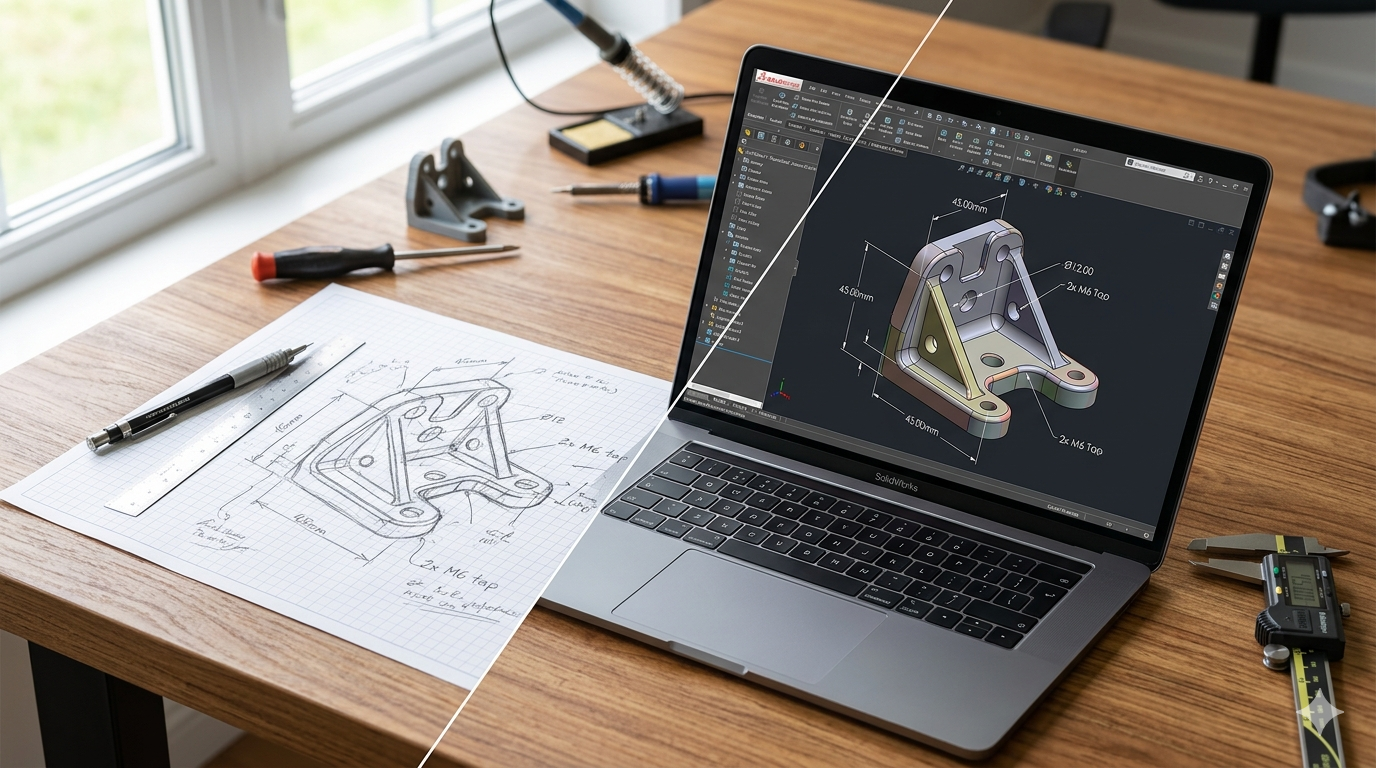
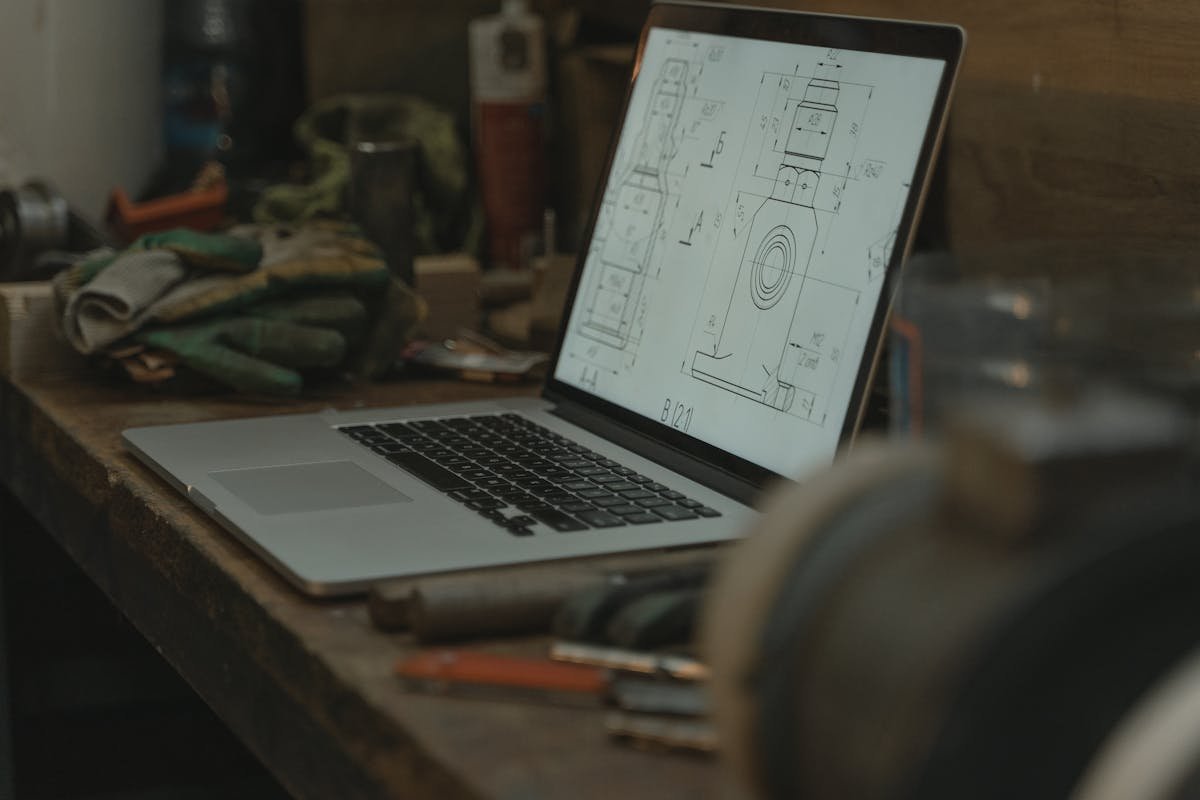
You have an idea. Maybe it is a sketch on the back of a napkin, a pencil drawing with rough dimensions, or a photo of an existing part you need to replicate. The question is: how do you convert that sketch into a professional 3D CAD model that is ready for 3D printing, CNC machining, or injection molding?
This guide walks you through the entire process — from preparing your sketch, to choosing the right CAD software, to selecting the correct file formats for your manufacturing method. Whether you are an inventor prototyping a product, an engineer replacing a legacy part, or an Amazon FBA seller designing packaging, this is the definitive guide to turning a drawing into a 3D model.
At MiniCAD, we have completed over 1,000 sketch-to-CAD conversions for clients in 40+ countries. This guide is built from that experience.
- What You Need Before Starting
- 5 Types of Input That Work for 3D Modeling
- The 6-Step Process: Sketch to Finished CAD File
- Which CAD Software Is Best? SolidWorks vs Fusion 360 vs AutoCAD
- File Format Guide: STL vs STEP vs IGES — Which Do You Need?
- Designing for 3D Printing: What Your CAD File Must Include
- Designing for CNC or Injection Molding: Key Differences
- 7 Common Mistakes When Converting Sketches to CAD
- DIY vs Hiring a Professional CAD Design Service
- Frequently Asked Questions
1. What You Need Before Starting
You do not need a perfect engineering drawing to get a 3D CAD model made. But the more information you provide, the faster and more accurate the result will be. Here is what helps:
- Dimensions — even approximate ones. Length, width, height, hole diameters, wall thickness. If you have calipers or a ruler, measure the critical features.
- Scale reference — if you cannot measure, include a coin, pen, or ruler in your photo so the engineer knows the real-world size.
- Material intent — will this be 3D printed in PLA? Machined from aluminum? Injection molded in ABS? The manufacturing method affects design decisions like wall thickness, draft angles, and tolerances.
- Multiple views — a single front view is a start, but a top view, side view, or isometric sketch removes guesswork significantly.
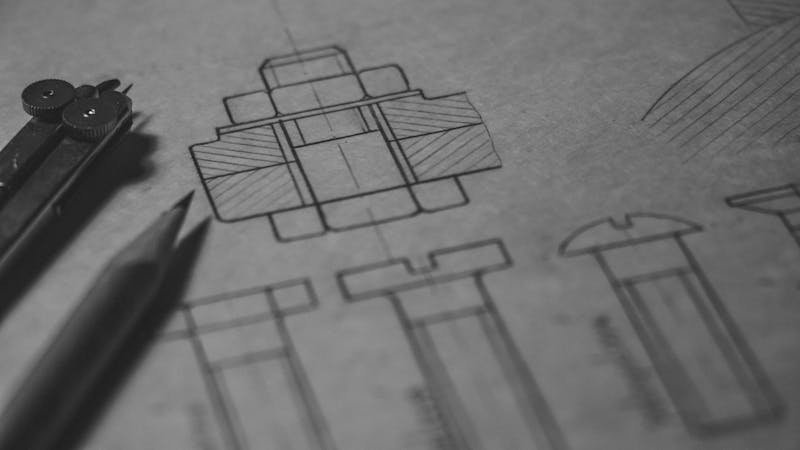
Pro tip: If you have a physical part you want replicated, take 4–6 photos from different angles with a ruler visible in frame. This gives a CAD engineer enough information to model the part without needing the physical item shipped.
2. The 5 Types of Input That Work for 3D CAD Modeling
One of the most common questions we receive at MiniCAD is: “Is my sketch good enough?” The answer is almost always yes. Professional CAD engineers work from a wide range of inputs every day. Here are the five most common:
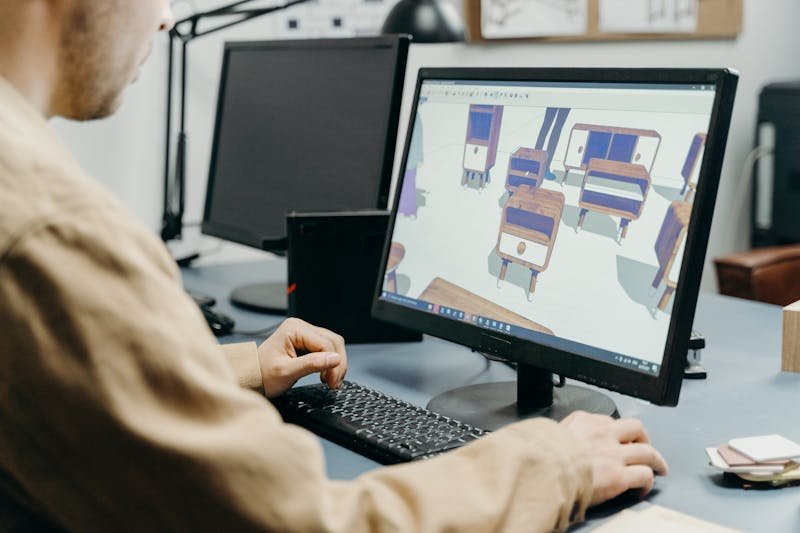
1. Hand-Drawn Sketch
The most common starting point. A pencil sketch on paper, a whiteboard drawing, or even a napkin sketch. Add dimensions where possible and annotate any features that are critical (holes, threads, chamfers, fillets).
2. Photo of an Existing Part
Need to replicate, modify, or reverse-engineer a physical object? Photos from multiple angles — with a scale reference — give a CAD engineer the data needed to convert a photo to a 3D model accurately.
3. PDF or 2D Drawing
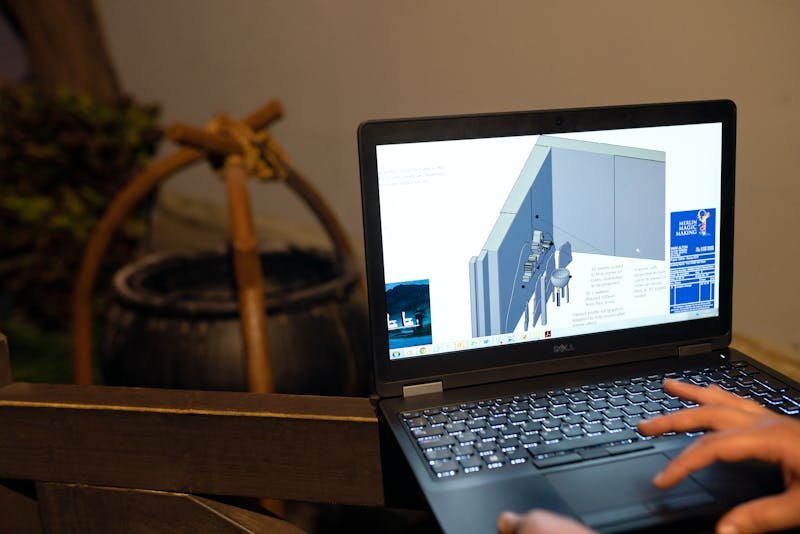
If you already have a 2D engineering drawing — even from decades ago — it can be converted into a modern 3D parametric model. Old blueprints, scanned drawings, and DWG files from AutoCAD are all valid starting points.
4. Verbal or Written Description
Some projects start with nothing more than a description: “I need a bracket that holds a 25mm pipe to a flat surface, with two mounting holes.” An experienced CAD engineer can work from a text description and iterate via revisions.
5. Existing CAD File (Modification)
Already have a STEP, IGES, or STL file that needs changes? Modifying an existing CAD file is faster than starting from scratch. Common requests include resizing, adding features, fixing errors, or converting between file formats.
3. The 6-Step Process: From Sketch to Delivered CAD File
Whether you model it yourself or hire a professional SolidWorks modeling service, the workflow from sketch to finished file follows the same logical sequence:
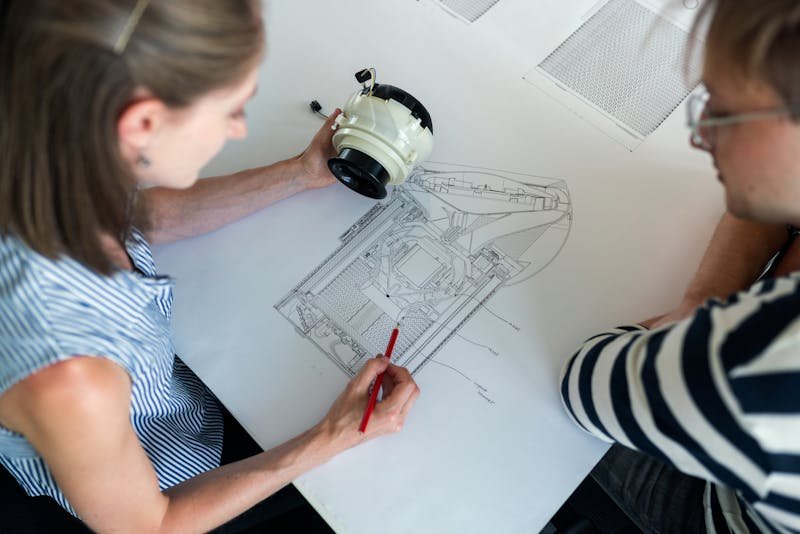
Step 1: Submit Your Sketch or Reference Material
Upload your sketch, photos, PDF, or description. Include all dimensions you have. The more detail, the fewer revision cycles needed.
Step 2: Clarification & Scope Review
A brief conversation — often via video call or messaging — to confirm dimensions, material, intended use, and deliverables. This step eliminates 90% of miscommunication issues.
Step 3: 2D Sketch in CAD Software
The engineer creates 2D profile sketches inside the CAD software (SolidWorks, Fusion 360, etc.), defining the geometry with precise dimensions and constraints. This is the foundation of the 3D model.
Step 4: 3D Model Creation
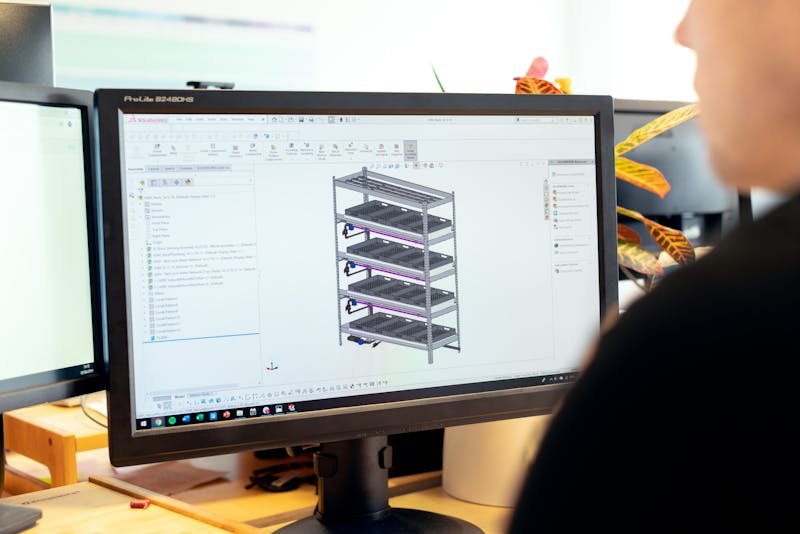
Using operations like extrude, revolve, sweep, loft, fillet, and chamfer, the 2D sketches are transformed into a fully parametric 3D solid model. Features are added sequentially — holes, threads, bosses, ribs, shells — until the part matches the design intent.
Step 5: Review & Revisions
Screenshots or renders of the model are shared for client review. Changes are made until the model matches expectations exactly. At MiniCAD, Premium orders include unlimited revisions — we do not deliver until it is right.
Step 6: Export & Delivery
The final model is exported in all required file formats. Typical deliverables include:
- SolidWorks native file (.SLDPRT / .SLDASM) — fully editable parametric model
- STEP file (.STP) — universal format, readable by all major CAD programs
- STL file (.STL) — required for 3D printing (FDM, SLA, SLS)
- IGES file (.IGS) — legacy universal format for CNC and older CAD systems
- OBJ file (.OBJ) — used for 3D rendering and visualization
- 2D Drawing (.PDF + .DWG) — dimensioned manufacturing drawing with GD&T if needed
4. Which CAD Software Is Best? SolidWorks vs Fusion 360 vs AutoCAD
The software choice matters because it determines the output quality, parametric editability, and compatibility with your manufacturer’s workflow. Here is how the three most popular options compare for converting sketches to 3D models:
| Feature | SolidWorks | Fusion 360 | AutoCAD |
|---|---|---|---|
| Best for | Manufacturing & engineering | Prototyping & hobbyist | 2D drawings & architecture |
| 3D Modeling | Industry standard | Good | Limited 3D |
| Parametric Editing | Full | Full | None (3D) |
| Assembly Design | Excellent | Good | Not supported |
| File Formats | SLDPRT, STEP, STL, IGES, DWG | F3D, STEP, STL, IGES | DWG, DXF, PDF |
| Manufacturer Preference | Most preferred globally | Accepted | 2D only |
| Cost | $3,995/yr (license) | Free (hobby) / $545/yr | $1,975/yr |
Our recommendation: If your part will be manufactured (3D printed, CNC machined, or injection molded), request SolidWorks files. It is the global standard for mechanical engineering, and every serious manufacturer accepts SolidWorks natively. MiniCAD uses SolidWorks for all 3D modeling projects.
5. File Format Guide: STL vs STEP vs IGES — Which Do You Need?
Choosing the wrong file format is one of the most expensive mistakes in product development. You send an STL to a CNC shop and they cannot edit it. You send a SolidWorks file to a 3D printing service and they need an STL. Here is the definitive breakdown:
STL (Standard Tessellation Language)
Use for: 3D printing (FDM, SLA, SLS, MJF)
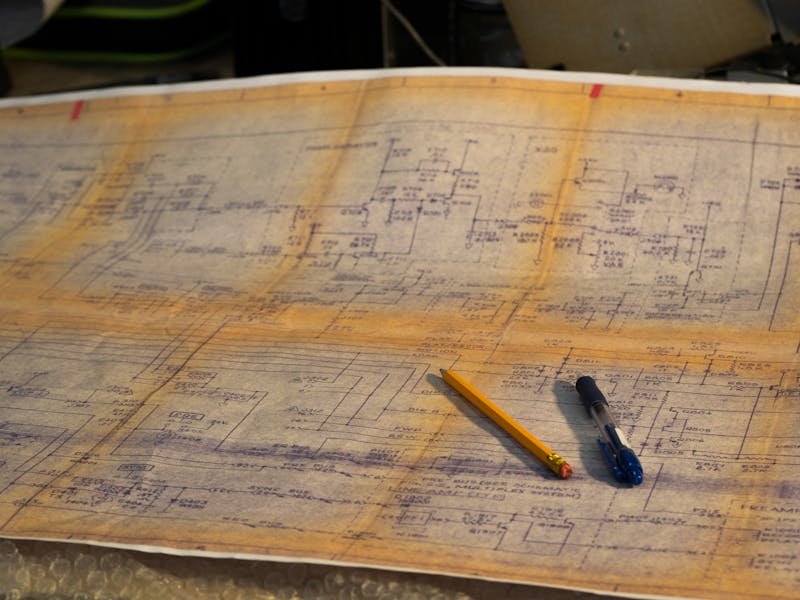
The STL file converts your smooth CAD model into a mesh of triangles. Every 3D printer accepts STL. However, STL files cannot be easily edited — they lose all parametric data. Always keep the original SolidWorks or STEP file as your master.
STEP (Standard for the Exchange of Product Data)
Use for: CNC machining, injection molding, sharing with any CAD software
STEP (.STP) is the universal exchange format. Every CAD program reads STEP files. Unlike STL, STEP retains solid geometry (not mesh) — meaning a manufacturer can measure, inspect, and modify the model. If you only request one format, request STEP.
IGES (Initial Graphics Exchange Specification)
Use for: Legacy systems, surface modeling, older CNC machines
IGES is the predecessor to STEP. Some older manufacturing facilities still require it. It handles surface data well but is less reliable for solid bodies than STEP.
OBJ (Wavefront Object)
Use for: 3D rendering, animation, AR/VR visualization
OBJ files carry mesh geometry plus material/texture data. Used in Blender, KeyShot, and web-based 3D viewers. Not suitable for manufacturing.
SLDPRT / SLDASM (SolidWorks Part / Assembly)
Use for: Full parametric editing, design iteration, engineering changes
The native SolidWorks file retains the complete feature tree — every sketch, extrude, fillet, and dimension is editable. This is the most valuable deliverable because it allows future modifications without rebuilding from scratch.
6. Designing for 3D Printing: What Your CAD File Must Include
A model that looks correct on screen can fail completely when 3D printed. CAD design for 3D printing requires specific technical considerations that general modeling does not:
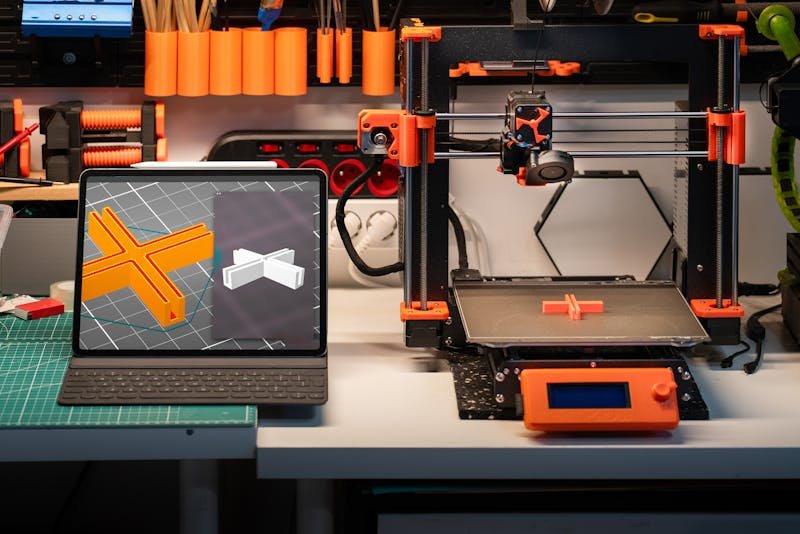
- Minimum wall thickness: FDM typically requires 1.2mm minimum. SLA can go down to 0.5mm. Thinner walls will not print or will break immediately.
- Overhangs and supports: Features angled more than 45° from vertical need support structures. Design self-supporting geometry where possible to reduce post-processing.
- Hole compensation: 3D printed holes shrink slightly. Design holes 0.2–0.4mm larger than nominal diameter for proper fit.
- Bridging limits: Horizontal spans without support should not exceed 10mm for FDM printing.
- Tolerance: FDM: ±0.3mm typical. SLA: ±0.1mm. SLS: ±0.15mm. Design clearances accordingly for mating parts.
- Orientation awareness: 3D printed parts are weakest in the Z-axis (layer direction). Orient critical load-bearing features perpendicular to the layer lines.
- Watertight mesh: The STL file must be a closed, manifold mesh with no gaps, inverted normals, or self-intersections. SolidWorks exports clean STLs from solid bodies automatically.
When you order CAD design for 3D printing from MiniCAD, we verify every file against these requirements before delivery. You receive a print-ready STL — not a model that needs troubleshooting in your slicer.
7. Designing for CNC Machining or Injection Molding: Key Differences
If your end goal is production manufacturing rather than prototyping, the CAD model requires additional design-for-manufacturing (DFM) considerations:
CNC Machining
- Avoid internal sharp corners — CNC cutters are round. Add small fillet radii (min 0.5mm) to all internal edges.
- Design for tool access — features at the bottom of deep pockets are expensive or impossible to machine. Keep depth-to-width ratios below 4:1.
- Specify tolerances only where needed — tight tolerances (±0.01mm) cost significantly more than standard (±0.1mm). Mark critical dimensions on the 2D drawing.
- File format needed: STEP (.STP) + 2D engineering drawing (PDF/DWG) with full dimensions and GD&T.
Injection Molding
- Draft angles: All vertical faces need 1°–3° of draft so the part can eject from the mold. No draft = no moldable part.
- Uniform wall thickness: Varying wall thickness causes sink marks, warping, and extended cycle times. Target consistency within ±10%.
- Ribs instead of thick walls: Use ribs (60% of wall thickness) to add structural strength without increasing material volume.
- Gate location: Discuss gate placement with your mold maker. The CAD model should account for cosmetic surfaces where gate marks are unacceptable.
- File format needed: SolidWorks native (.SLDPRT) + STEP + fully dimensioned 2D drawing.
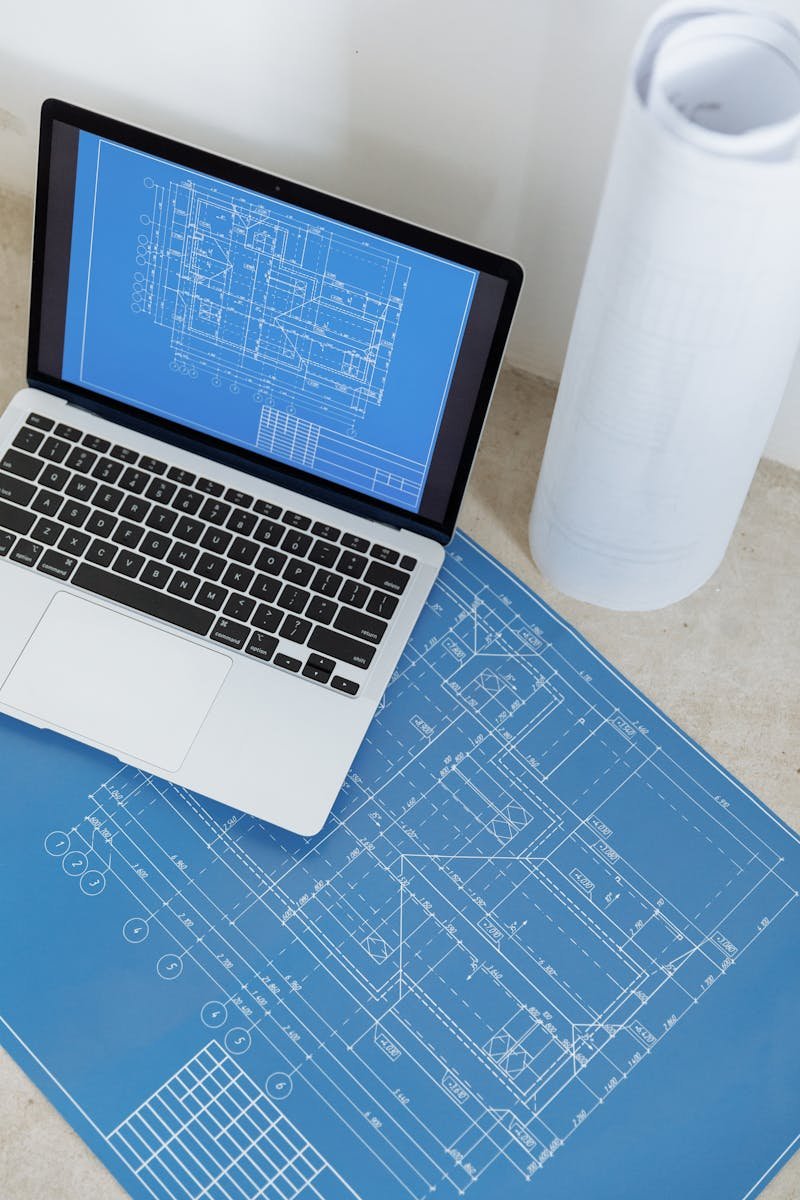
8. 7 Common Mistakes When Converting a Sketch to a 3D CAD Model
After completing over 1,000 sketch-to-CAD projects, these are the mistakes we see most frequently — and how to avoid them:
- Providing a sketch with no dimensions. Even approximate dimensions are infinitely better than none. Measure roughly and note it.
- Requesting only an STL file. STL cannot be edited. Always request the SolidWorks native file or STEP as your master — you will need it when design changes come (and they always come).
- Ignoring material and process. A part designed for 3D printing has completely different requirements than one designed for CNC. State your manufacturing method upfront.
- Specifying unnecessary tight tolerances. Tolerance costs money. Only dimension critical fits and interfaces tightly. General dimensions can remain at standard tolerance.
- Skipping the 2D drawing. A 3D model is not a manufacturing instruction. If your part will be CNC machined, you need a dimensioned 2D engineering drawing with tolerances and surface finish callouts.
- Designing flat parts in 3D CAD. If your part is a flat profile (laser cut, waterjet), you only need a 2D DXF — not a 3D model. This saves cost and time.
- Not communicating the “why.” Tell your CAD engineer what the part does, how it fits, and what it connects to. This context prevents design errors that pure dimensions cannot catch.
9. DIY vs Hiring a Professional 3D Modeling Service
The honest answer: it depends on your project complexity, timeline, and whether mechanical engineering knowledge is required.
Model It Yourself If:
- You are learning CAD as a skill and have time to invest
- The part is simple geometry (box, cylinder, basic bracket)
- You already own Fusion 360 or a similar tool and know the basics
- Precision is not critical (decorative or concept models)
Hire a Professional CAD Design Service If:
- The part requires engineering knowledge (thread sizes, tolerance stacks, material properties)
- You need it fast — professional engineer vs learning curve
- The part will be manufactured and must be production-ready
- You need multiple file formats (SolidWorks + STEP + STL + 2D drawing)
- The design involves assemblies with multiple mating parts
- You need parametric design that can be modified later without rebuilding
Why 1,000+ Engineers and Inventors Choose MiniCAD
- ✓ 4,470+ verified reviews — 4.9★ average rating
- ✓ 24-hour delivery available on all projects
- ✓ SolidWorks + STEP + STL + 2D drawing included
- ✓ Video call available to review your design before delivery
- ✓ Revisions until it is exactly right — no exceptions
- ✓ Direct orders via minicad.io get 10% off + priority handling
10. Frequently Asked Questions
These are the real questions we receive from clients every week. Answers are direct and specific.
What file format do I need for 3D printing?
STL is the standard file format for 3D printing. Every FDM, SLA, and SLS printer accepts STL files. For higher quality prints with color data, consider 3MF format. Always also keep a STEP or SolidWorks file as your editable master.
Can you make a 3D model from just a photo?
Yes. We convert photos to 3D models regularly. Take 4–6 photos from different angles with a ruler or known object in frame for scale. If exact dimensions matter, provide measurements of key features with calipers or a tape measure.
How long does it take to convert a sketch to a CAD model?
A simple single-part model takes 24–48 hours. A complex assembly with 5+ parts typically takes 3–5 days. MiniCAD offers 24-hour delivery on Premium orders — the fastest turnaround in the industry.
How much does a professional 3D modeling service cost?
Market rates for professional SolidWorks modeling range from $35–$120 per part depending on complexity. Local engineering studios charge $200–$500/hour. Online services like MiniCAD offer studio-quality work at freelancer pricing: Basic $35 · Standard $65 · Premium $120.
What is the difference between STL and STEP files?
STL converts your model into a triangle mesh — ideal for 3D printing but not editable. STEP retains the solid geometry as smooth mathematical surfaces — editable by any CAD program, preferred by manufacturers. Always request both.
Can I modify the 3D model after delivery?
Yes — if you receive the SolidWorks native file (.SLDPRT). This contains the full parametric feature tree, meaning you can change any dimension, feature, or parameter. STEP files can also be edited but require re-modeling features. STL files cannot be meaningfully edited.
Do I need a 2D drawing if I already have a 3D model?
For 3D printing: no. The STL file is sufficient. For CNC machining or injection molding: yes. Manufacturers need a fully dimensioned 2D engineering drawing with tolerances, surface finish callouts, and material specification to quote and produce your part correctly.
What CAD software does MiniCAD use?
SolidWorks — the global industry standard for mechanical engineering and product design. SolidWorks is preferred by 70%+ of manufacturing facilities worldwide. We also deliver drawings compatible with AutoCAD when required.
See how we apply these principles in real projects — explore our custom brackets and mounts designed in SolidWorks and 2D technical drawing for manufacturing portfolio examples. Ready to start your own project? Check out our SolidWorks modeling service and outsource CAD design for professional SolidWorks engineering delivered in 24 hours.
Ready to Turn Your Sketch Into Reality?
Send us your sketch, photo, or description — and receive a precision SolidWorks 3D model ready for 3D printing or manufacturing. 24-hour delivery available.
Direct orders get 10% off + priority handling. Use code DIRECT10 at checkout.
{
“@context”: “https://schema.org”,
“@type”: “Article”,
“headline”: “How to Convert a Sketch Into a 3D CAD Model for 3D Printing or Manufacturing”,
“description”: “Step-by-step guide to converting hand sketches, photos, and drawings into professional 3D CAD models ready for 3D printing or CNC manufacturing.”,
“author”: {
“@type”: “Organization”,
“name”: “MiniCAD Engineering Studio”,
“url”: “https://minicad.io”
},
“publisher”: {
“@type”: “Organization”,
“name”: “MiniCAD”,
“url”: “https://minicad.io”
},
“datePublished”: “2026-03-19”,
“image”: “https://minicad.io/wp-content/uploads/2026/03/common-cad-design-mistakes-clients-make-1.jpg”,
“mainEntityOfPage”: “https://minicad.io/blog/convert-sketch-to-3d-cad-model”
}
{
“@context”: “https://schema.org”,
“@type”: “FAQPage”,
“mainEntity”: [
{
“@type”: “Question”,
“name”: “What file format do I need for 3D printing?”,
“acceptedAnswer”: {
“@type”: “Answer”,
“text”: “STL is the standard file format for 3D printing. Every FDM, SLA, and SLS printer accepts STL files. Always also keep a STEP or SolidWorks file as your editable master.”
}
},
{
“@type”: “Question”,
“name”: “Can you make a 3D model from just a photo?”,
“acceptedAnswer”: {
“@type”: “Answer”,
“text”: “Yes. Take 4–6 photos from different angles with a ruler or known object in frame for scale. If exact dimensions matter, provide measurements of key features.”
}
},
{
“@type”: “Question”,
“name”: “How long does it take to convert a sketch to a CAD model?”,
“acceptedAnswer”: {
“@type”: “Answer”,
“text”: “A simple single-part model takes 24–48 hours. A complex assembly with 5+ parts typically takes 3–5 days. MiniCAD offers 24-hour delivery on Premium orders.”
}
},
{
“@type”: “Question”,
“name”: “How much does a professional 3D modeling service cost?”,
“acceptedAnswer”: {
“@type”: “Answer”,
“text”: “Market rates for professional SolidWorks modeling range from $35–$120 per part. MiniCAD pricing: Basic $35, Standard $65, Premium $120.”
}
},
{
“@type”: “Question”,
“name”: “What is the difference between STL and STEP files?”,
“acceptedAnswer”: {
“@type”: “Answer”,
“text”: “STL converts your model into a triangle mesh — ideal for 3D printing but not editable. STEP retains solid geometry as smooth mathematical surfaces — editable by any CAD program, preferred by manufacturers.”
}
},
{
“@type”: “Question”,
“name”: “Can I modify the 3D model after delivery?”,
“acceptedAnswer”: {
“@type”: “Answer”,
“text”: “Yes — if you receive the SolidWorks native file (.SLDPRT). This contains the full parametric feature tree. STEP files can also be edited. STL files cannot be meaningfully edited.”
}
},
{
“@type”: “Question”,
“name”: “Do I need a 2D drawing if I already have a 3D model?”,
“acceptedAnswer”: {
“@type”: “Answer”,
“text”: “For 3D printing: no. For CNC machining or injection molding: yes. Manufacturers need a fully dimensioned 2D engineering drawing with tolerances and material specification.”
}
},
{
“@type”: “Question”,
“name”: “What CAD software does MiniCAD use?”,
“acceptedAnswer”: {
“@type”: “Answer”,
“text”: “SolidWorks — the global industry standard for mechanical engineering and product design, preferred by 70%+ of manufacturing facilities worldwide.”
}
}
]
}