Photo: Jakub Zerdzicki / Pexels
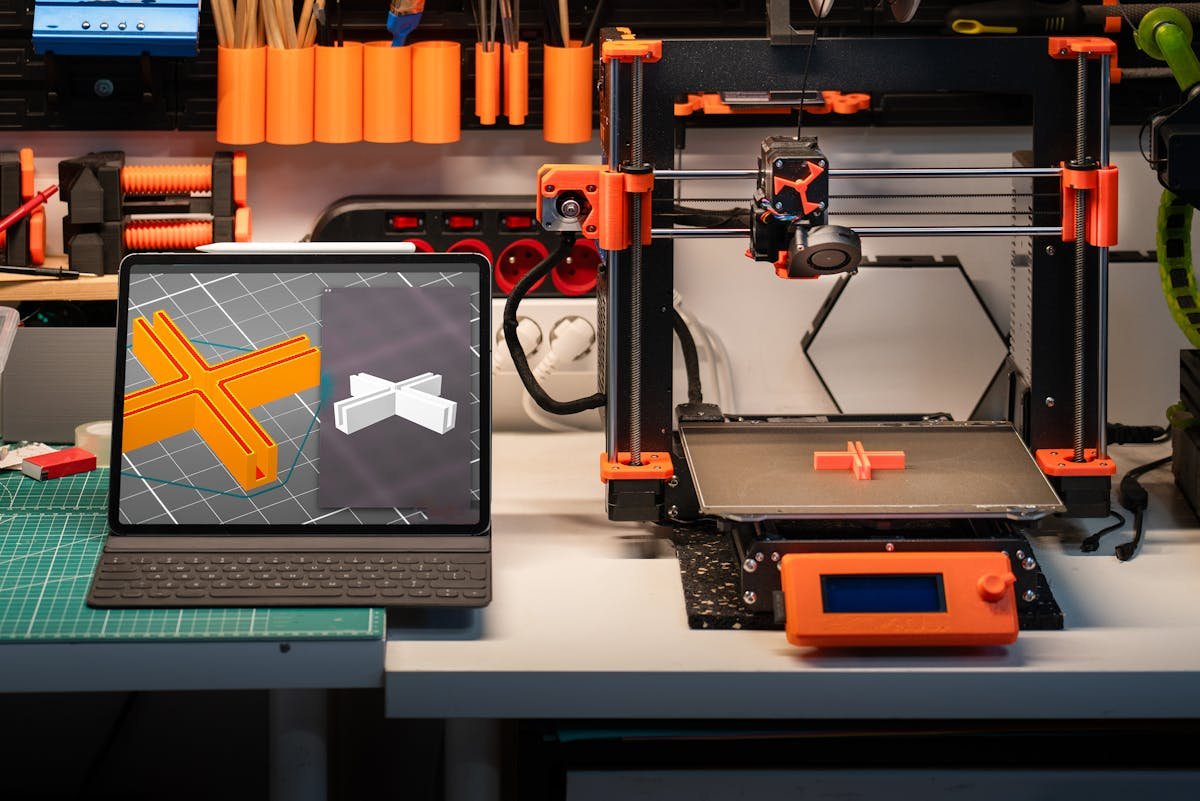
You’ve got an idea for a physical part. Maybe it’s a replacement knob for your dishwasher. A custom mount for a camera. A prototype of a product you want to sell. And you’ve heard that 3D printing can make it real.
But you’ve never 3D printed anything. You don’t own a printer. You don’t know CAD software. And the jargon — STL, FDM, SLA, infill, layer height, slicing — sounds like a foreign language.
This guide is for you. Zero assumed knowledge. Here’s exactly how you go from idea to a physical object in your hands.
Step 1: You Need a 3D File (Not a Drawing)
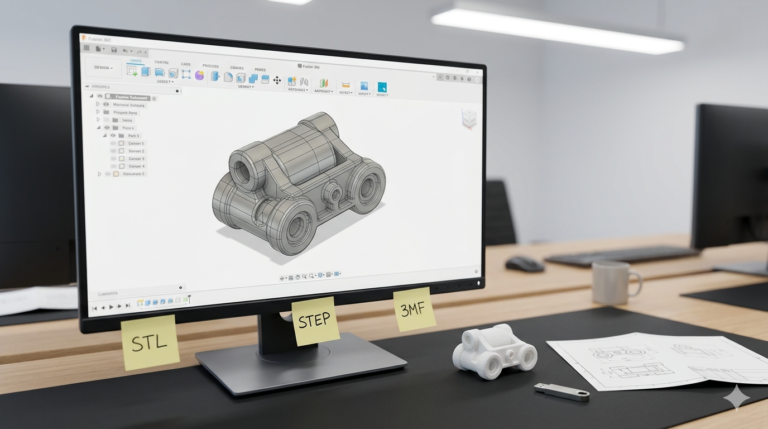
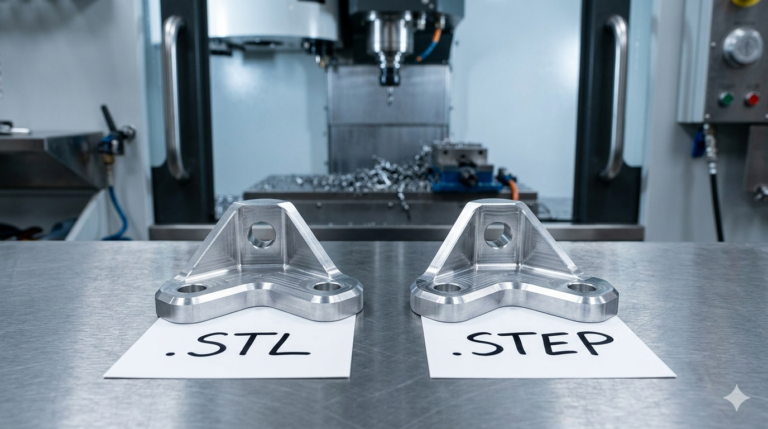
A 3D printer doesn’t read sketches, PDFs, or photos. It reads a specific type of file — usually an STL — that describes the exact 3D shape of your object as a mesh of tiny triangles.
You get this file in one of three ways:
- Download one. Sites like Thingiverse, Printables, and MyMiniFactory have millions of free 3D models. If someone has already designed what you need, download the STL and skip to Step 3.
- Model it yourself. Free software like Fusion 360 or TinkerCAD lets you create 3D models. TinkerCAD is genuinely beginner-friendly — you drag and drop shapes like digital Lego. Good for simple parts.
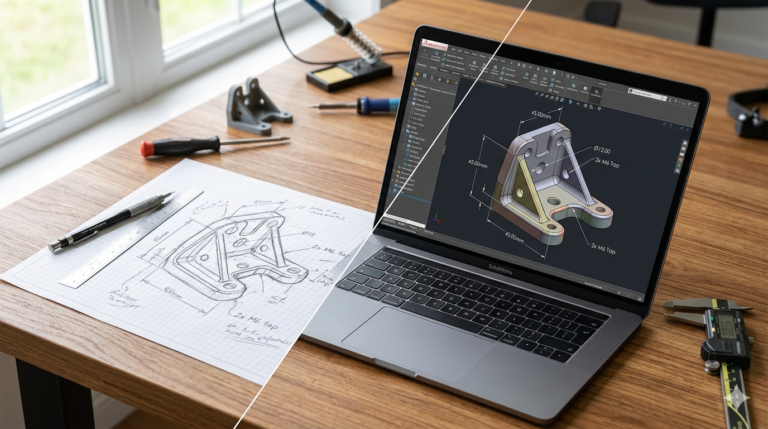
- Hire a CAD engineer. If the part needs to be precise, functional, or you simply don’t have time to learn software, send a sketch or photo to a professional. They’ll build the model and send you the files. This is what MiniCAD does.
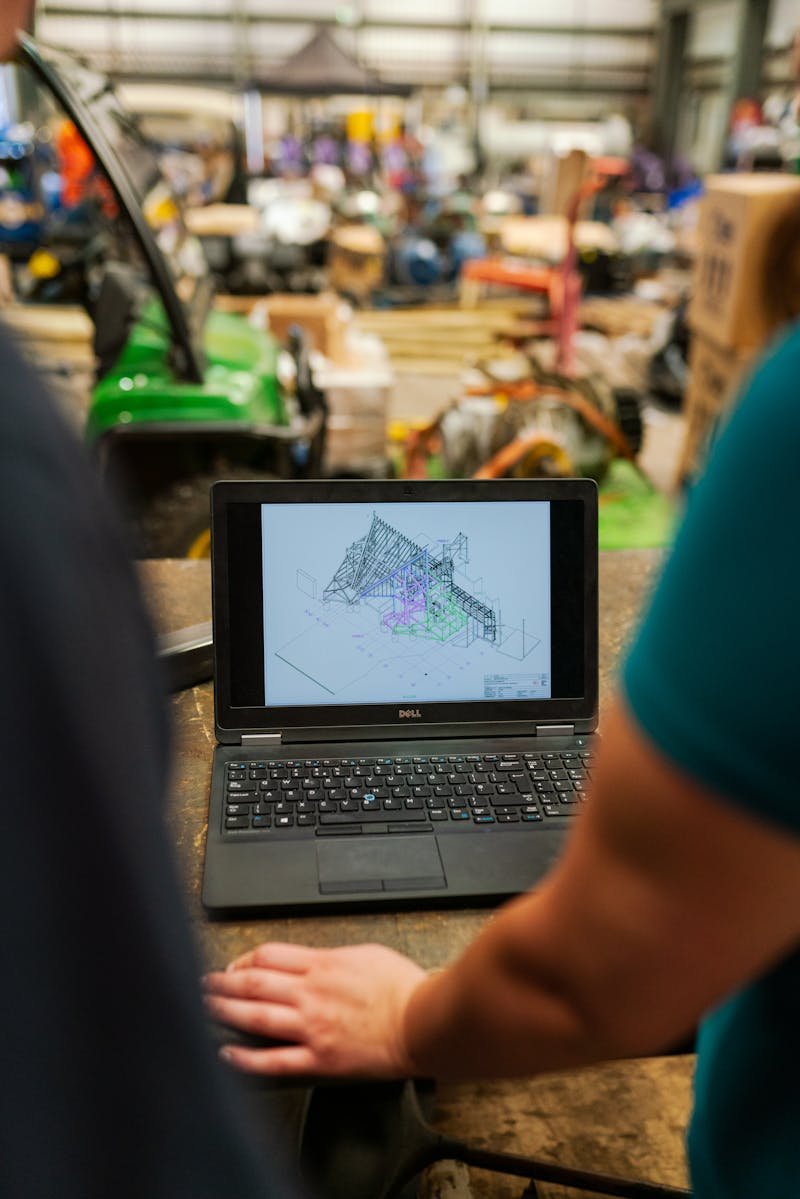
Photo: ThisIsEngineering / Pexels
Step 2: Choose Your Printing Method
There are different types of 3D printers, and they produce different results. The three you’ll encounter most:
FDM (Fused Deposition Modeling)
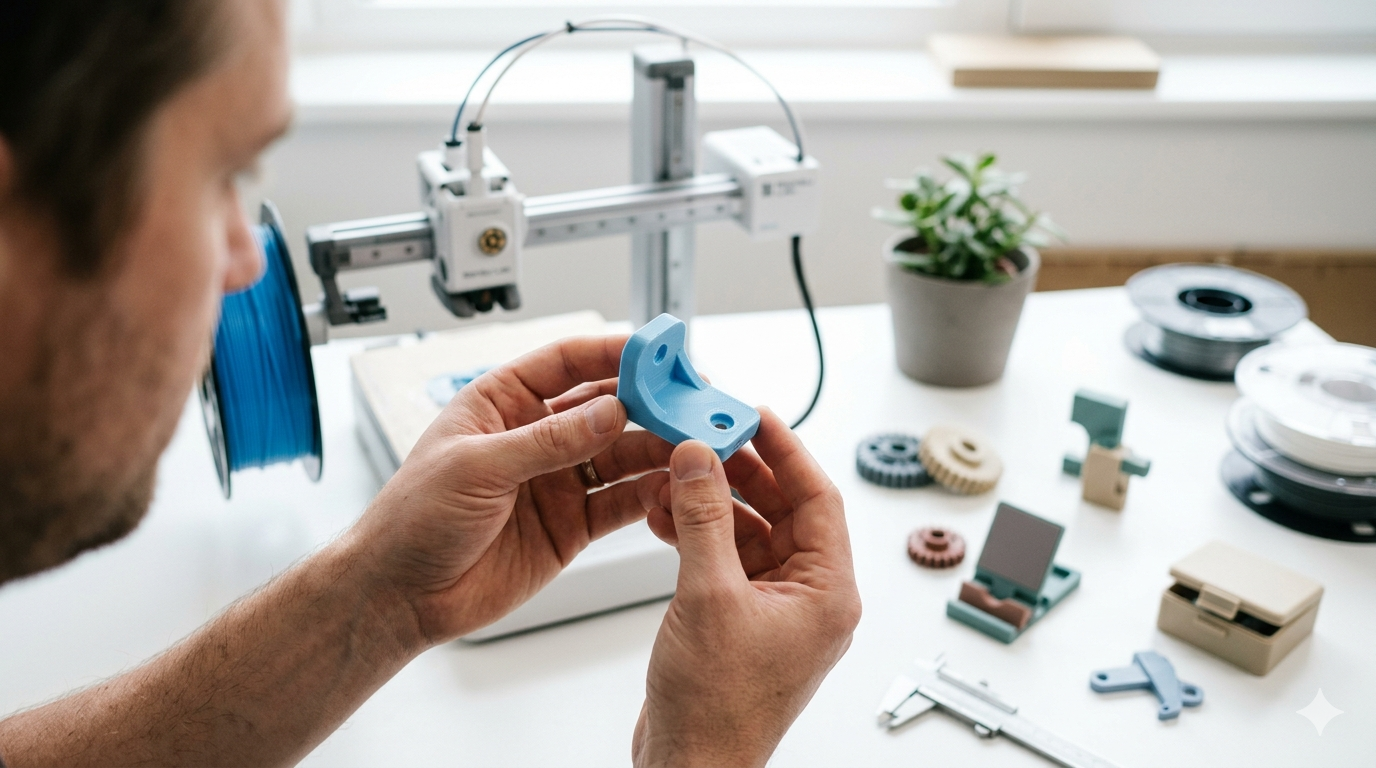
The most common and cheapest. Melts plastic filament and deposits it layer by layer. Great for prototypes, brackets, enclosures, and anything functional. Visible layer lines on the surface. Materials: PLA (easy, biodegradable), PETG (stronger, heat resistant), ABS (tough but harder to print).
SLA (Stereolithography)
Uses UV light to cure liquid resin layer by layer. Produces smooth, detailed parts. Best for miniatures, jewelry, dental models, and anything where surface finish matters. More expensive per part than FDM.
SLS (Selective Laser Sintering)
Uses a laser to fuse nylon powder. No support structures needed. Strong, functional parts with good surface finish. Typically only available through printing services — these machines cost $50,000+.
If you’re not sure: start with FDM in PLA. It’s the cheapest, most forgiving, and widely available at every print service. You can always upgrade to SLA or SLS for the production version.
Step 3: Print It (Two Options)
Option A: Use a 3D Printing Service
If you don’t own a printer, upload your STL file to an online printing service. They print it and mail it to you. Popular services include:
- JLCPCB / PCBWay: Based in China. Incredibly cheap for FDM, SLA, and SLS. Shipping takes 7–14 days. A small PLA part might cost $3–$8.
- Craftcloud / Shapeways: Aggregators that compare prices across multiple printers. More expensive but faster shipping options.
- Local print shops: Search “3D printing service near me.” Many libraries, makerspaces, and small businesses offer printing. You can pick it up in person.
Upload your STL, select material and quantity, pay, wait. That’s it.
Option B: Buy a Printer
If you’ll be printing regularly, owning a printer pays for itself fast. Entry-level FDM printers:
- Bambu Lab A1 Mini (~$200): Best plug-and-play experience. Minimal setup.
- Creality Ender 3 V3 (~$200): Proven workhorse. Huge community for troubleshooting.
- Bambu Lab P1S (~$600): Enclosed, multi-material capable. Excellent for functional parts.
You’ll also need slicer software (free) — this converts your STL file into instructions the printer understands. BambuStudio (for Bambu printers) or PrusaSlicer (works with everything) are the two best options.
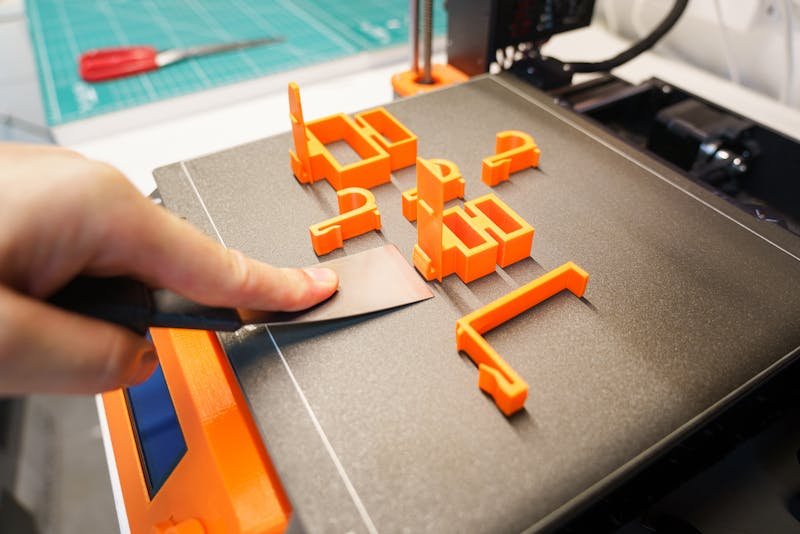
Photo: Jakub Zerdzicki / Pexels
Step 4: Test and Iterate
Your first print probably won’t be perfect. And that’s completely fine — that’s the entire point of 3D printing. The cost of iteration is nearly zero.
A PLA bracket costs $1–$3 in material. If it doesn’t fit right, modify the CAD file, re-export the STL, and print again. Professional product development teams go through 5–15 iterations before finalizing a design. Your first print is a learning tool, not a finished product.
Common first-print issues and quick fixes:
- Part is slightly too big/small? Most slicers have a scale function. Or adjust the CAD model by 0.5mm.
- Holes are too tight? 3D printed holes shrink ~0.3mm. Open the hole by that amount in the CAD.
- Surface is rough? Reduce layer height from 0.2mm to 0.12mm. Slower print but smoother result.
- Part broke at a layer line? Increase wall count or infill percentage. Or reorient the part so the stress isn’t perpendicular to layers.
Step 5: Scale Up (If You Want)
3D printing is perfect for 1–50 units. Beyond that, injection molding becomes cheaper per unit. But you don’t need to think about that yet. Start with one print. See if it works. If it does and you need hundreds — that’s a future conversation about molds and mass production.
The beautiful thing about starting with a proper CAD file is that the same SolidWorks or STEP file you used for 3D printing transitions directly to injection molding when you’re ready to scale. No redesign needed — just add draft angles and adjust wall thickness for the new process.
See how we apply these principles in real projects — explore our custom 3D printed storage container with hinged lid and custom 3D printed nozzle diffuser manifold portfolio examples. Ready to start your own project? Check out our STL file design service and prototype design service for professional SolidWorks engineering delivered in 24 hours.
The Simplest Path From Idea to Part
- Sketch your idea on paper (2 minutes)
- Send the sketch to a CAD engineer and get an STL back (1–3 days, $35–$65)
- Upload the STL to an online printing service (5 minutes)
- Receive the part in the mail (5–14 days, $3–$20)
Total: $40–$85 and 1–2 weeks. That’s the cost of turning an idea into a physical object you can hold. A decade ago, that same process required a $50,000 machine or a $5,000 prototype shop visit. The barrier is gone. The only thing standing between your idea and reality is a sketch.
Have a sketch? We’ll handle the rest.
Send your sketch or description. We deliver a print-ready 3D file in 24–48 hours.
4,470+ reviews · 4.9★ rating · 24-hour delivery available
{
“@context”: “https://schema.org”,
“@type”: “Article”,
“headline”: “The Beginner’s Guide to Getting a Part 3D Printed (If You’ve Never Done It Before)”,
“description”: “A complete beginner’s walkthrough — from sketch to physical 3D printed part. No jargon, no assumed knowledge. Whether you own a printer or not.”,
“author”: {“@type”: “Person”, “name”: “Loay”, “url”: “https://minicad.io”},
“publisher”: {“@type”: “Organization”, “name”: “MiniCAD”, “url”: “https://minicad.io”},
“datePublished”: “2026-03-19”,
“image”: “https://minicad.io/wp-content/uploads/2026/03/beginners-guide-3d-printing-first-part-1.jpg”,
“mainEntityOfPage”: “https://minicad.io/blog/beginners-guide-3d-printing-first-part”
}