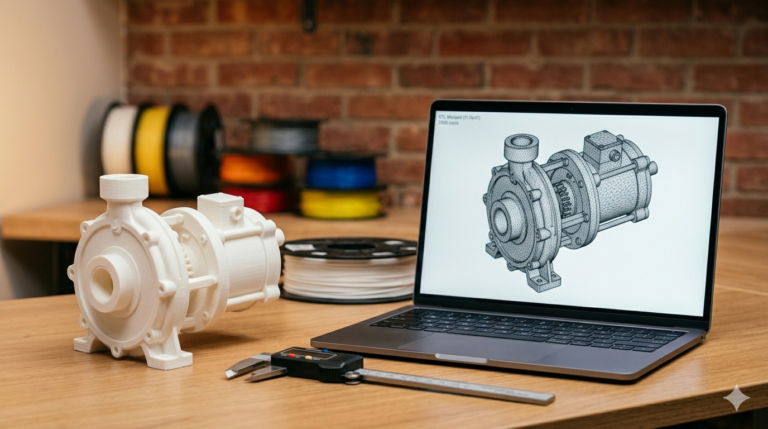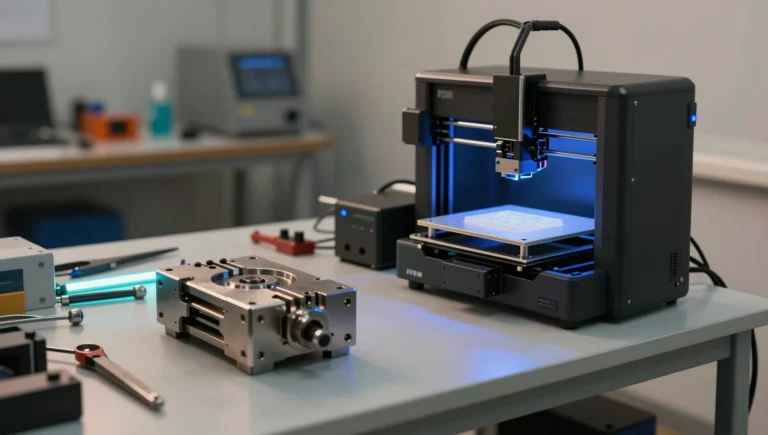
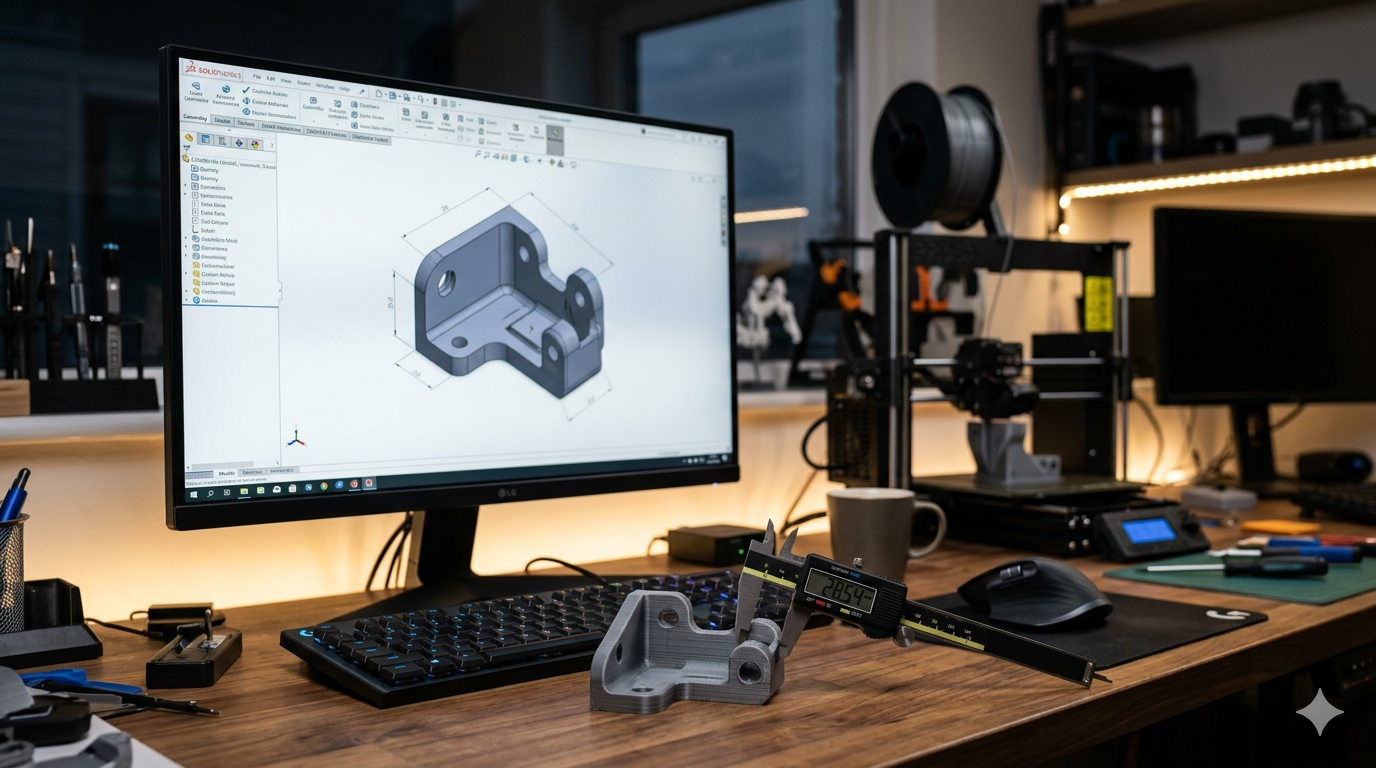
The gap between a 3D model on screen and a successful print on the bed comes down to one discipline — cad design for 3d printing that accounts for the physical realities of additive manufacturing. Layer adhesion limits, nozzle constraints, support requirements, and material shrinkage all impose rules that generic CAD modeling ignores entirely. This guide covers the professional workflow our studio uses across more than 7,000 delivered projects to produce files that print correctly on the first attempt, saving clients significant time, material waste, and costly revision cycles that delay product launches and inflate engineering budgets.
Why CAD Design for 3D Printing Differs from Standard Modeling
Standard mechanical CAD assumes near-infinite manufacturing precision. A sharp internal corner with zero fillet radius, a wall thickness of 0.5 mm, a horizontal bridge spanning 80 mm with no support underneath — all perfectly valid geometry inside SolidWorks, all guaranteed failures on any FDM printer. A properly constructed 3d printing cad model must respect layer height resolution, nozzle width multiples, maximum overhang angles, and the anisotropic mechanical properties of fused filament deposition. These are not optional guidelines or soft best practices — they are hard physical constraints that determine whether your part succeeds or fails on the build plate.
The cost difference is immediate and measurable. A part originally designed for CNC machining that gets naively exported to STL and sent to an FDM printer will show visible surface defects at every overhang, weak inter-layer joints that snap under modest load, and dimensional errors large enough to make assembly with mating components completely impossible. Designing for the additive process from the very first SolidWorks sketch eliminates expensive reprints, conserves raw filament, and produces parts that function exactly as intended from revision one without rework.
Our studio models every project in SolidWorks with the target printer brand, nozzle diameter, layer height, and filament grade specified before creating the first feature. This front-loaded approach means the geometry is print-valid throughout the entire design process rather than being retrofitted at the export stage — when changes are expensive, time-consuming, and frequently introduce new problems.

Wall Thickness Rules That Actually Work in Practice
For FDM printers equipped with a standard 0.4 mm nozzle, minimum wall thickness is 1.2 mm — three complete perimeter passes creating a solid, continuous, gap-free surface capable of carrying structural loads. Walls thinner than 1.2 mm print with micro-gaps between adjacent extrusion lines, creating porous surfaces that fail under mechanical load, leak when containing fluids, and exhibit a rough, translucent appearance even after post-processing. For parts that carry weight, absorb impact, or serve as structural members in a larger assembly, 2.0 mm (five perimeters) delivers a significant and measurable improvement in tensile strength, layer adhesion, and overall part stiffness.
SLA and MSLA resin printers resolve walls down to 0.5 mm with smooth, highly detailed surfaces, but thin resin walls flex dangerously under peel forces during the layer-by-layer curing process and frequently crack during the washing and UV post-cure stages. We recommend 1.0 mm minimum for any SLA part that needs to survive complete post-processing and real-world handling without failure. The Formlabs engineering blog publishes excellent material-specific data on minimum feature sizes for every resin formulation in their product catalog, and we reference it for every resin-based project we take on.
Wall thickness also directly affects print duration and material cost. Increasing from 1.2 mm to 2.0 mm walls adds roughly 40 percent more perimeter extrusion time per layer — a cost that compounds across hundreds of layers on tall parts. For large components where total print time affects project schedules, we calculate and document the exact trade-off between mechanical requirements and print duration so clients can make informed engineering decisions rather than guessing.
Overhangs, Bridges, and Support Strategy
The 45-degree overhang rule is the universal baseline for FDM printing — any surface extending beyond 45 degrees from vertical requires support material beneath it or the deposited filament will sag, curl, and produce rough, dimensionally inaccurate surfaces. However, this rule is a conservative simplification based on PLA printed at moderate speeds with basic part cooling. PETG with a well-designed dual-sided fan duct tolerates 55-degree overhangs cleanly. PLA on a well-calibrated machine with optimized cooling handles 60 degrees for spans shorter than 15 mm without visible quality loss.
The safe professional default when doing cad design for 3d printing remains 45 degrees for a practical reason — it works reliably across all FDM hardware regardless of manufacturer, calibration quality, ambient shop temperature, or operator experience level. When we design parts for clients who will print on their own machines — machines we have never seen or calibrated — conservative design rules prevent support calls, refund requests, and frustrated reprinting sessions that erode client confidence.
Bridges — horizontal spans between two vertically supported endpoints — print cleanly up to approximately 50 mm in PLA with aggressive part cooling from a directional fan duct. Beyond that distance, expect noticeable material sag that creates rough bottom surfaces and vertical dimensional inaccuracy exceeding 0.5 mm. Three proven strategies address long bridges: add a thin structural rib underneath that can be optionally removed post-print, split the geometry into two halves that snap or screw together after printing, or reorient the entire part 90 degrees to convert the problematic bridge into a simple vertical wall that prints without any support.
Dimensional Tolerances and Mating Clearances
FDM parts shrink during cooling from extrusion temperature (190 to 260 degrees Celsius depending on material) to room temperature. ABS experiences 0.7 to 0.8 percent linear shrinkage — significant enough to throw off mating surfaces by half a millimeter or more on a 70 mm part. PLA shrinks a more modest 0.3 to 0.4 percent. PETG sits between the two at roughly 0.5 percent. For mating surfaces where fit matters — lids onto bases, shafts into bores, snap-fit clips engaging retaining walls — add 0.3 mm clearance per side on FDM parts and 0.15 mm per side on SLA parts.
These clearance values come from dimensional testing across thousands of printed parts using multiple printer brands and material batches in our studio, not from textbook approximations that assume ideal, controlled laboratory printing conditions. Hole diameters always print undersized on FDM because the nozzle traces the inside of circular toolpaths, effectively reducing the bore diameter by roughly one nozzle width. Compensate by adding 0.4 mm to your nominal hole diameter. For M3 screw clearance holes, model at 3.6 mm instead of the textbook 3.2 mm. For press-fit brass heat-set inserts, model the receiving hole 0.2 mm smaller than the insert outer diameter for a reliable interference fit that holds under vibration.
Print Orientation and Mechanical Strength
FDM parts are mechanically weakest in the Z-axis — the build direction where inter-layer adhesion is the only structural bond between deposited material. A hook or clip printed with its load-bearing direction aligned vertically snaps at the weakest layer line under a fraction of the force it handles when printed horizontally, where loads transfer through continuous, unbroken extrusion paths. When doing solidworks for 3d printing, always identify the primary load direction first and orient the part so the strongest material axis (the XY plane along continuous extrusion) carries that critical load.
We annotate every STL delivery with the recommended print orientation, the engineering rationale explaining why that orientation was chosen, and one or two alternative orientations for clients who face build volume constraints or need to optimize for print speed rather than maximum mechanical strength. When geometry prevents optimal orientation for both strength and printability — which happens frequently with complex functional parts — we add fillets at stress concentration points and increase wall thickness in the weak axis direction. A simple 2 mm fillet at the base of a vertical hook can triple its pull-off force by distributing stress across multiple layer bonds instead of concentrating it at a single weak interface.

STL Export Settings from SolidWorks
In SolidWorks, navigate to File, Save As, then select STL from the format dropdown. Set chord deviation to 0.05 mm and angle tolerance to 5 degrees — this combination produces a reliable balance between file size and surface smoothness for the vast majority of mechanical parts. For components with tight curves, visible cosmetic surfaces, or features where facet quality matters aesthetically, tighten deviation to 0.02 mm for noticeably smoother triangulation. For large flat mechanical parts where surface curvature is absent, 0.1 mm deviation keeps file sizes manageable without sacrificing dimensional accuracy within FDM tolerance bands.
Always export as binary STL format, never ASCII — binary files are five to ten times smaller with identical geometric content. After export, verify the mesh in your preferred slicer application for non-manifold edges, inverted triangle normals, and triangulation gaps before committing filament and machine time. We run every STL export through the SolidWorks official documentation mesh verification workflow and repair any detected issues before the file leaves our studio, ensuring clients never encounter mesh errors at the slicer stage.
Validating in Slicer Software
After STL export, open the file in PrusaSlicer documentation or Cura to verify real-world printability. Check for red-highlighted unsupported overhangs, floating islands that will drop mid-print, and walls too thin for the configured nozzle to fill with continuous toolpaths. If the slicer shows warnings, return to SolidWorks and fix the geometry at the parametric source — never rely on slicer auto-repair algorithms for parts destined for functional use, client delivery, or any application where dimensional accuracy matters.
Slice a complete preview and inspect the generated toolpath layer by layer. Look for mid-wall retractions that cause surface blobs, excessive travel moves across open areas that cause stringing between features, and zones where tree or linear supports will be physically impossible to remove without visible surface damage. This five-minute slicer validation step prevents hours of wasted print time and kilograms of wasted filament — a critical discipline that consistently separates professional cad design for 3d printing from amateur modeling that looks good on screen but fails on the build plate.
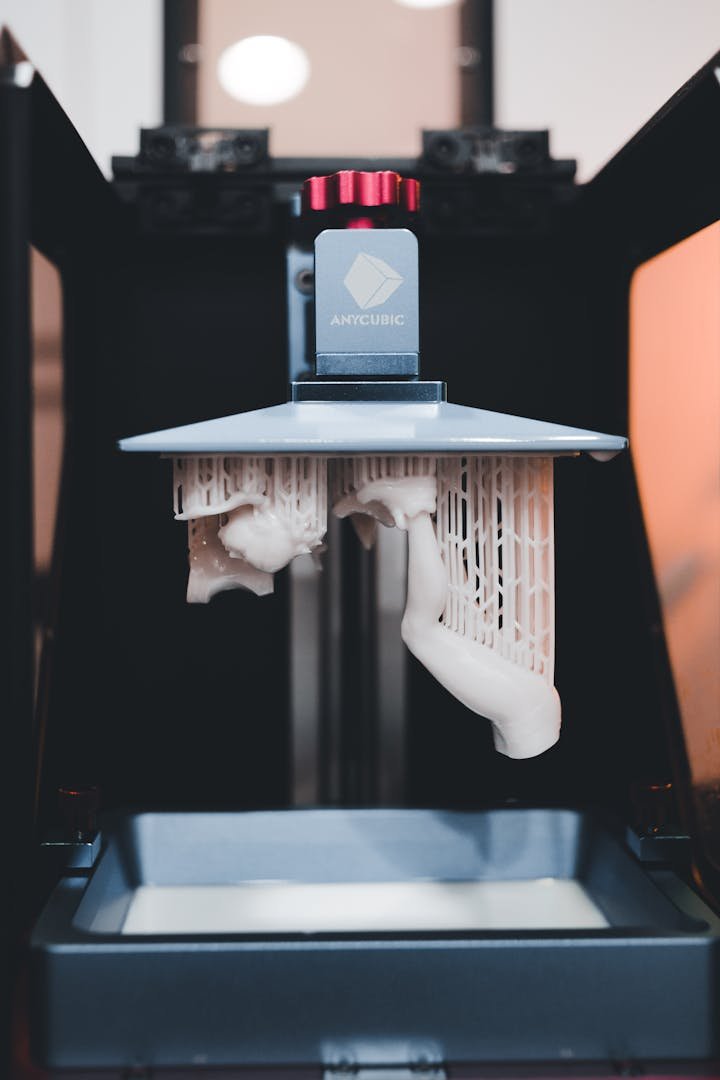
Explore real examples of this work in our portfolio — see our multi-color 3D printed NFC coin and custom 3D printed storage container projects. Need professional engineering support? Our product rendering service and outsource CAD design service deliver production-ready files in 24 hours.
Get Print-Ready CAD Files in 24 Hours
Every file we deliver at minicad.io is built with print constraints embedded from the very first SolidWorks feature — wall thickness validated for your specific printer, tolerances compensated for your chosen material grade, orientation documented with engineering rationale, and STL export settings optimized for your slicer. With over 7,000 projects delivered across 40 countries, a 4.9-star rating from 4,470+ verified reviews, and 24-hour turnaround on most single-part jobs, get a free quote and have your print-ready files by tomorrow.