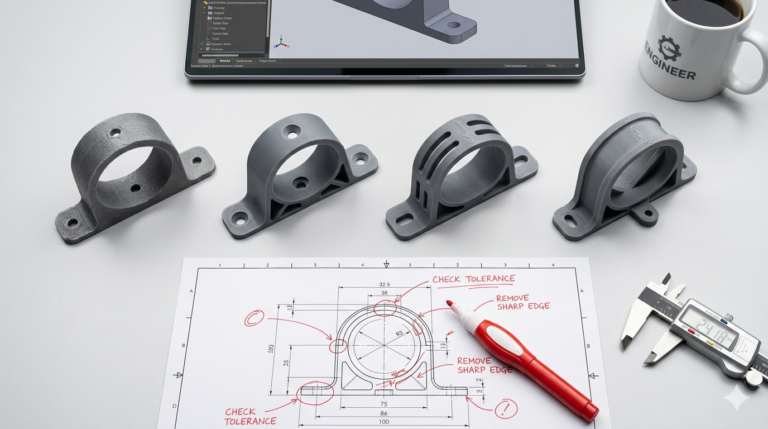
Photo: Oleg Laptev / Pexels
Got a 3D model. Want to print it. Which file do you send to the printer?
This question comes up constantly, and the internet gives you six different answers with conflicting advice. Here’s the straightforward version from someone who exports print-ready files every single day.
The Short Answer
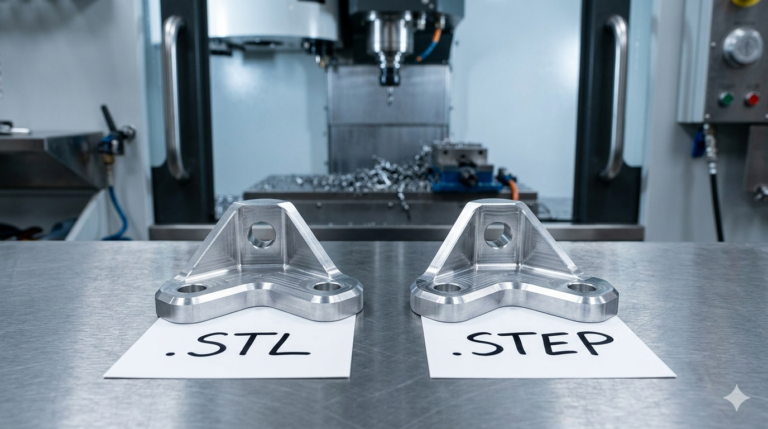
Request an STL file. That’s it. If you’re 3D printing — FDM, SLA, or SLS — the STL is what the slicer software reads. Every slicer on the planet supports it. Every 3D printer on the planet supports it. It just works.
But also get the STEP file. And the SolidWorks file if possible. I’ll explain why in a minute.
File Formats Explained (Without the Jargon)
| Format | What It Is | Use It For | Editable? |
|---|---|---|---|
| STL | Mesh of triangles describing the surface. No color, no material, just geometry. | 3D printing (all types) | No |
| STEP | Precise mathematical solid model. Industry standard for engineering. | CNC machining, sharing between CAD programs | Partially |
| 3MF | Modern replacement for STL. Includes color, material, and print settings. | Multi-color printing, modern slicers | No |
| OBJ | Mesh format that supports color and texture mapping. | Rendering, animation, color 3D printing | No |
| SLDPRT | SolidWorks native file with full parametric feature tree. | Design edits, dimension changes, future iterations | Fully |
Why You Need More Than Just the STL
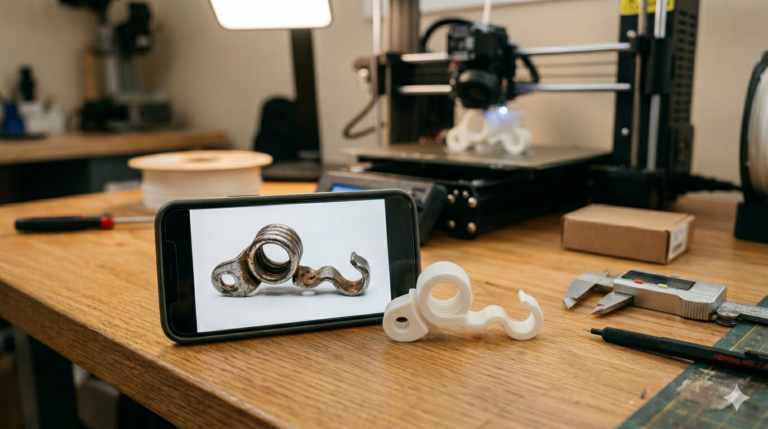
The STL gets your part printed today. But what about next month when you realize the wall should be 0.5mm thicker? Or the hole diameter is slightly wrong? Or you want to add a second mounting point?
You can’t edit an STL file in any meaningful way. It’s a dead snapshot — triangles with no engineering intelligence. Changing a hole diameter in an STL means deleting triangles, rebuilding a section, and hoping the mesh stays watertight. It’s like editing a JPEG to move a window in a building — technically possible, practically insane.
The STEP file lets another CAD engineer import and modify the geometry. The SolidWorks file lets them do it properly with the full feature tree intact — change a dimension, and everything downstream updates automatically.
Photo: Jakub Zerdzicki / Pexels
What About 3MF? Should I Care?
3MF is the technically superior format. It stores everything an STL stores, plus:
- Color and texture data (for multi-color printers)
- Material assignments
- Print settings (layer height, infill) baked into the file
- Support structure information
Modern slicers like BambuStudio and PrusaSlicer fully support 3MF. If your workflow is purely within these slicers, 3MF is arguably better than STL.
But here’s the reality: if you’re sending your file to an external printing service, ordering through an online portal, or sharing with someone who uses different software — STL is universally accepted. 3MF increasingly is too, but it’s not ubiquitous yet. STL is the safe choice. 3MF is the better choice when you know your recipient supports it.
My recommendation: get both. Export takes five seconds.
The File Package You Should Always Request
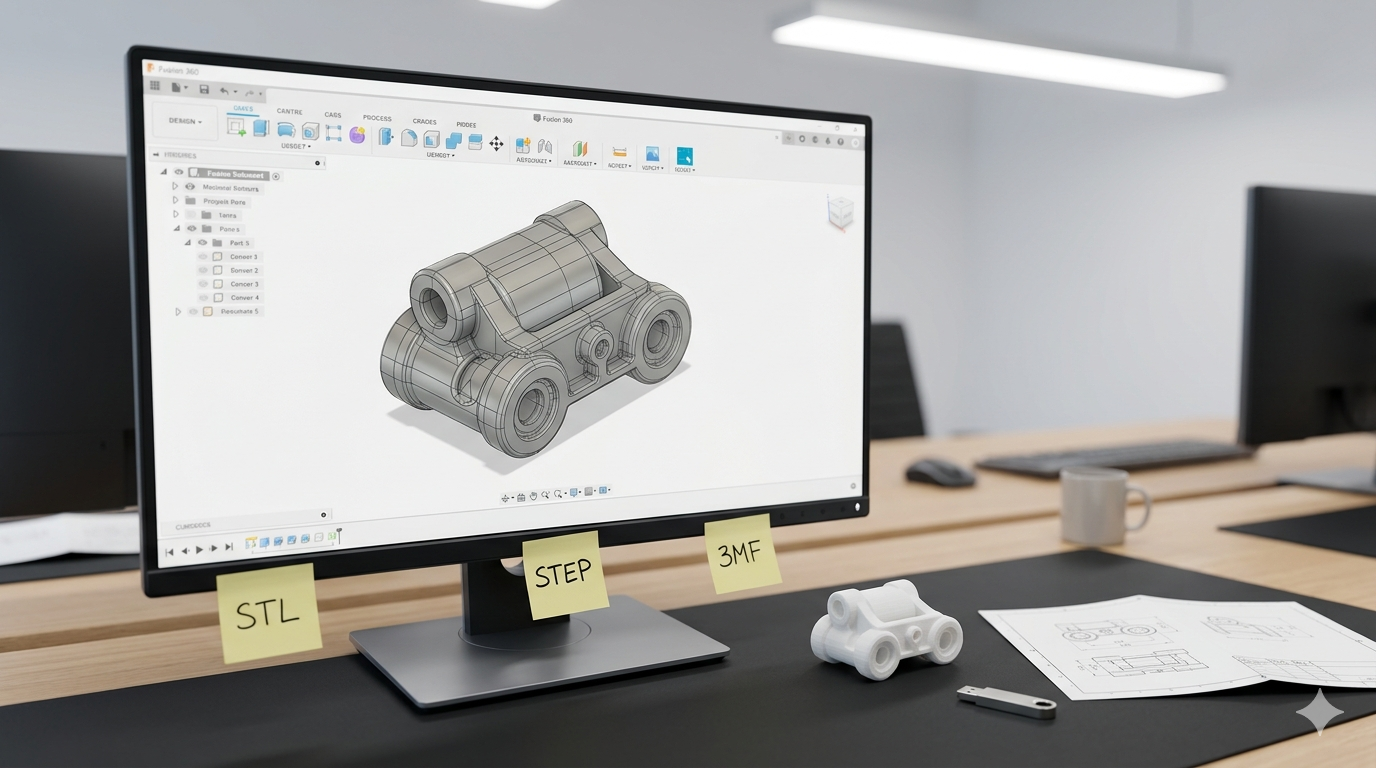
Whenever you hire a CAD engineer — whether it’s MiniCAD, a freelancer, or your cousin who knows Fusion 360 — ask for this set:
- SolidWorks native (.SLDPRT) — your master file for future edits
- STEP (.STP) — your insurance policy, opens in any CAD software
- STL (.STL) — your print-ready file, send directly to any slicer
Three files. Covers every scenario: printing today, editing tomorrow, manufacturing next year.
If you’re doing multi-color or multi-material printing, add a 3MF to the list. If you need renders or animations, add an OBJ. But those three are the non-negotiable core.
See how we apply these principles in real projects — explore our custom PCB enclosure 3D printed project box and multi-color 3D printed NFC coin portfolio examples. Ready to start your own project? Check out our STL file design service and technical drawing service for professional SolidWorks engineering delivered in 24 hours.
STL Export Settings That Matter
Not all STLs are equal. When exporting from CAD software, there are quality settings that affect how closely the triangles approximate the true curves of your model.
- Deviation (chord tolerance): Keep it under 0.05mm. This means the triangle mesh never deviates more than 0.05mm from the true surface. For most prints, this is invisible.
- Angle tolerance: 10° or less. Controls how finely curved surfaces are tessellated.
- Binary vs ASCII: Always binary. Same data, one-fifth the file size.
If your CAD engineer exports with these settings (they should know to do this), your STL will be clean, small, and printer-ready. If you’re exporting yourself from Fusion 360 or SolidWorks, look for “High” or “Fine” quality preset — those set reasonable defaults.
Every MiniCAD order includes all three formats.
SolidWorks source + STEP + STL. Print-ready, edit-ready, manufacture-ready.
4,470+ reviews · 4.9★ rating · 24-hour delivery available
{
“@context”: “https://schema.org”,
“@type”: “Article”,
“headline”: “What File Format Should I Request for 3D Printing?”,
“description”: “STL, STEP, 3MF, OBJ — which file format do you actually need for 3D printing? A clear answer from someone who exports these files 20 times a day.”,
“author”: {“@type”: “Person”, “name”: “Loay”, “url”: “https://minicad.io”},
“publisher”: {“@type”: “Organization”, “name”: “MiniCAD”, “url”: “https://minicad.io”},
“datePublished”: “2026-03-19”,
“image”: “https://minicad.io/wp-content/uploads/2026/03/best-file-format-3d-printing-1.jpg”,
“mainEntityOfPage”: “https://minicad.io/blog/best-file-format-3d-printing”
}