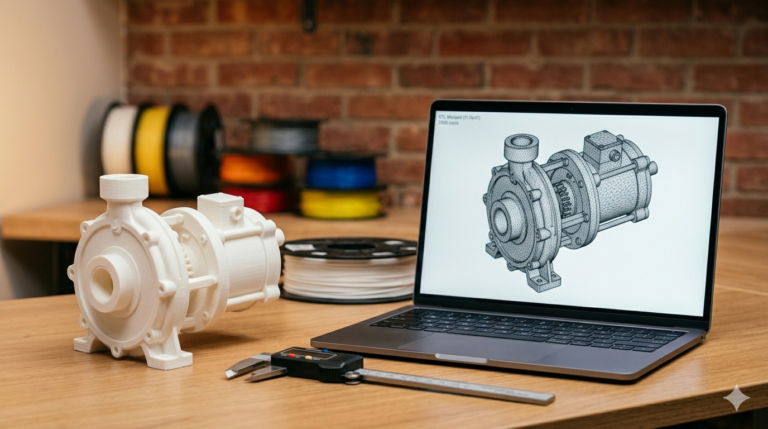
Every 3D printer on the market — from a $200 desktop Ender to a $500,000 industrial EOS system — reads the same fundamental geometry format: triangulated mesh files that describe the outer surface of a solid object as a collection of flat triangular facets. Stl files for 3d printing have been the dominant format since Chuck Hull invented stereolithography in 1986, and despite the emergence of superior alternatives like 3MF, STL remains the universal language that every slicer, every printer, and every service bureau accepts without compatibility questions. This practical guide covers everything a product developer needs to know about STL files — how they work internally, how to get good ones, how to verify quality, and when to consider alternatives.
How STL Files for 3D Printing Actually Work
An stl file format stores geometry as a list of triangular facets, each defined by three vertex coordinates and a surface normal vector indicating which side faces outward. Curved surfaces are approximated by large numbers of small flat triangles — more triangles produce smoother approximations but create larger files. A simple cube requires only 12 triangles (2 per face). A sphere at moderate resolution requires 500 to 2,000 triangles depending on the smoothness target. A complex mechanical part with holes, fillets, and curved surfaces typically contains 50,000 to 500,000 triangles at resolution settings appropriate for FDM printing.
The critical limitation of STL is what it does not store: color, material properties, build orientation, support structure preferences, tolerance metadata, and dimensional units. An STL file is raw geometry with no manufacturing context — the slicer and operator must supply every production parameter independently. This limitation is why the All3DP resource center and other printing resources recommend specifying print settings in a separate document alongside the STL file, rather than assuming the slicer defaults will produce acceptable results for your specific application and quality requirements.

How to Get Quality Custom STL Files for Printing
Three sources produce custom stl for printing with varying quality and ownership characteristics. Community repositories (Thingiverse, Printables, Cults3D, MyMiniFactory) offer free and low-cost pre-made STLs — useful for generic parts but dimensionally fixed with no modification capability. Online STL generators (parametric web tools that produce simple geometry from user inputs) handle basic shapes but cannot produce the complex, multi-feature geometry that functional product parts require. Professional CAD design services build custom parametric models in SolidWorks and export STL at client-specified resolution — the only option that delivers both the printed mesh and the native source files needed for future dimensional modifications.
When commissioning stl files for 3d printing from a professional service, always request the native SolidWorks source file alongside the STL. The parametric source lets you modify dimensions, adjust tolerances, and re-export updated STLs for years without paying for a new design. An STL-only delivery locks you into the exact geometry the designer chose — any dimensional change requires a new project from scratch because mesh files cannot be parametrically edited.
STL Export Settings That Actually Matter
In SolidWorks, the two critical export parameters are chord deviation (maximum distance between the true surface and the triangle mesh) and angle tolerance (maximum angle between adjacent triangle normals on curved surfaces). For stl for fdm printing at 0.2 mm layer height, chord deviation of 0.05 mm and angle tolerance of 5 degrees produces optimal results — the mesh is smoother than the layer resolution can reproduce, so going finer wastes file size without improving print quality. For SLA at 0.025 mm layers, tighten chord deviation to 0.02 mm for visibly smoother curves on cosmetic surfaces. Always export as binary STL (5 to 10 times smaller than ASCII with identical geometry).

Common STL Problems and How to Fix Them
Non-manifold edges (triangle edges shared by more than two faces) cause slicers to generate unpredictable toolpaths. Inverted normals (triangles facing inward) confuse the slicer about solid versus empty regions. Gaps between adjacent triangles create non-watertight meshes that cannot be sliced correctly. These errors originate in the CAD model — overlapping bodies, zero-thickness surfaces, or import corruption from format conversion — and should be fixed at the parametric source rather than patched with mesh repair tools that frequently introduce new problems while fixing old ones.
Before printing any STL, open it in PrusaSlicer documentation or Cura and check for red-highlighted mesh errors, thin-wall warnings, and floating geometry islands. This 2-minute verification prevents hours of wasted print time on files with defects that were invisible in the CAD viewport but catastrophic at the slicer stage. Our studio runs automated mesh diagnostics plus manual slicer preview verification on every STL export before delivery — catching mesh defects, geometric errors, and surface normal problems before they reach the client’s printer and waste filament, machine time, and project calendar days on failed prints that should have been prevented at the export verification stage.
When to Use 3MF Instead of STL
3MF (3D Manufacturing Format) stores everything STL cannot — color, material properties, build orientation, support preferences, and dimensional units — in a single compressed file. If your slicer supports 3MF natively (PrusaSlicer, Cura, Bambu Studio, OrcaSlicer all do), it is objectively superior for production parts where manufacturing context should travel with the geometry. For maximum compatibility across unknown service bureaus and older printer firmware, STL remains the safe universal default. We deliver both formats when clients request them — STL for compatibility, 3MF for information-rich and metadata-complete production workflows.

Explore real examples of this work in our portfolio — see our multi-color 3D printed NFC coin and custom 3D printed storage container projects. Need professional engineering support? Our technical drawing service and product rendering service deliver production-ready files in 24 hours.
Get Print-Ready STL Files in 24 Hours
Whether you need a custom stl for printing designed from your sketch, a legacy part replicated from physical measurements, or an existing CAD model exported to print-optimized STL with proper resolution settings and orientation notes — our studio delivers. Every stl files for 3d printing project at minicad.io includes native SolidWorks source files, STEP exports, STL at specified mesh resolution, and print orientation documentation. With 7,000+ projects delivered, 4,470+ verified reviews, and 24-hour turnaround on single-part jobs, get a free quote and have your professionally validated, print-ready files delivered by tomorrow morning.