Photo by Daniel Smyth / Pexels
Last month a client sent me his part as an STL file. He wanted me to make the hole 2mm wider.
I had to tell him the bad news: I couldn’t just edit the hole. His entire model was a mesh of triangles. No dimensions. No feature tree. No way to grab that hole and type a new number.
He ended up paying for a full re-model. That one wrong file format cost him $65 and three extra days.
It happens all the time. So here’s the shortest possible guide to stop it from happening to you.
STL — The 3D Printing File
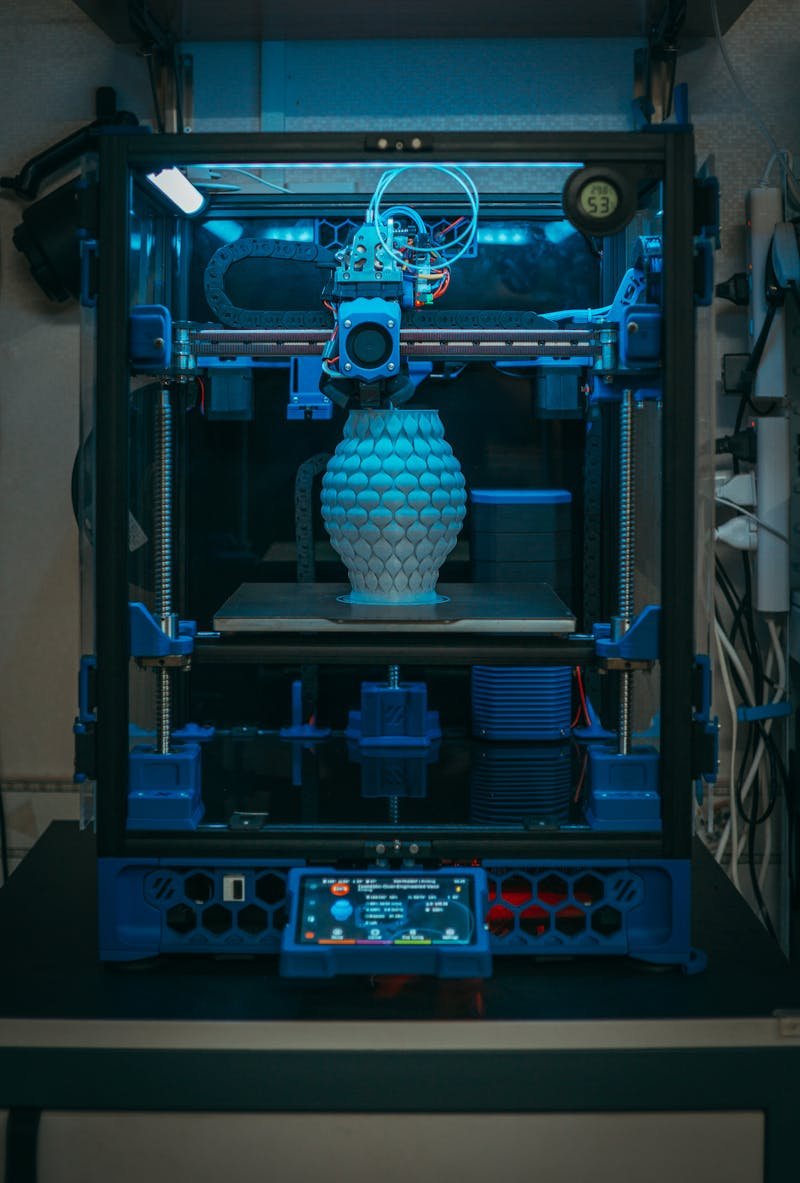
Photo by Fox / Pexels
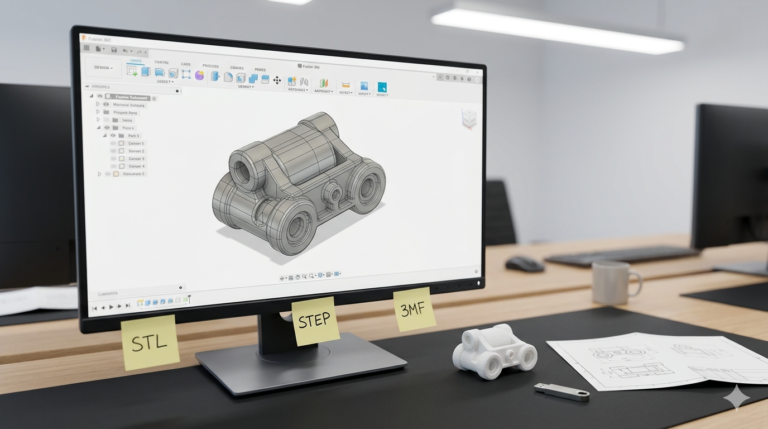
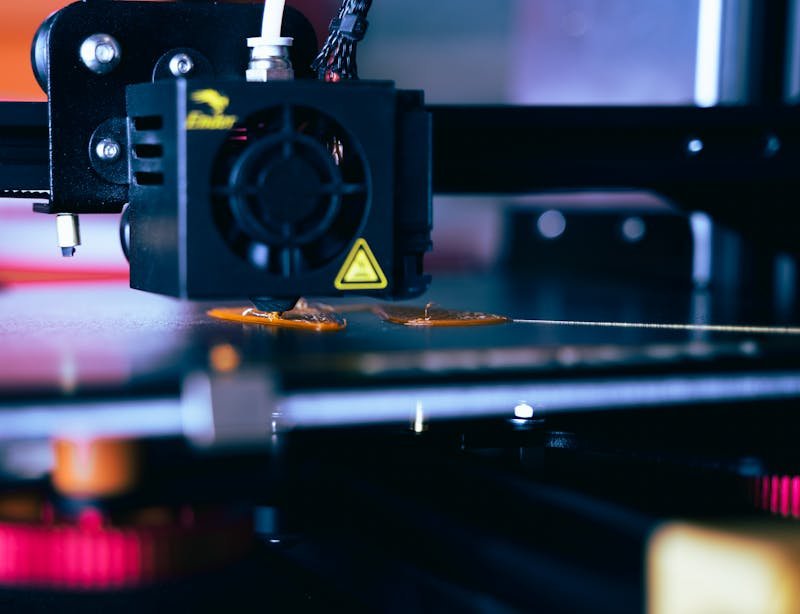
STL stands for Standard Tessellation Language. It takes your smooth CAD model and breaks it into thousands of tiny triangles. That’s all a 3D printer needs — a surface made of triangles, nothing more.
Send an STL when:
- You’re uploading to a 3D printing service (Shapeways, JLCPCB, your local print shop)
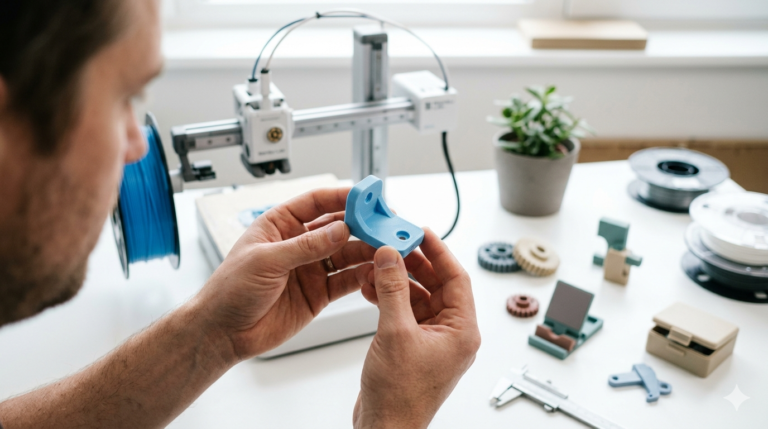
- You’re slicing the file yourself in Cura, PrusaSlicer, or BambuStudio
- The design is final and nobody needs to edit it again
Don’t send an STL when: you think you might ever need to change anything. A 2mm edit on an STL file often means rebuilding the entire model from scratch.
STEP — The Universal Engineering File
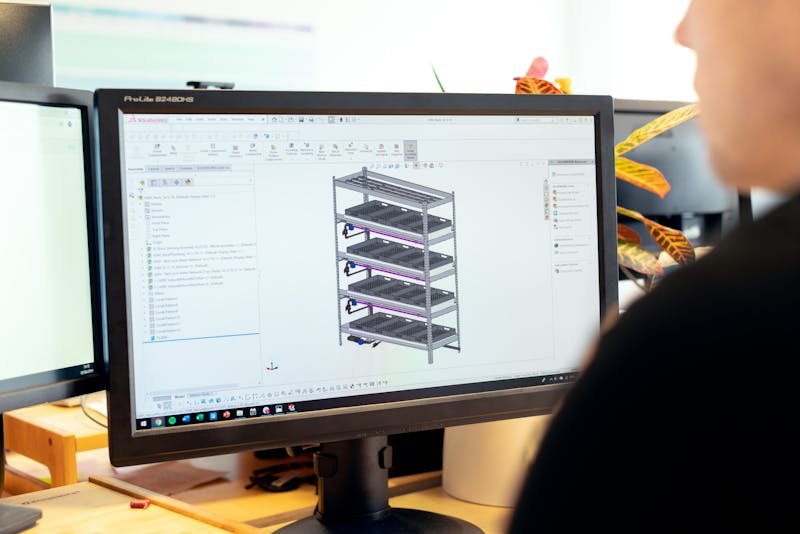
Photo by ThisIsEngineering / Pexels
STEP (.STP) keeps the actual mathematical surfaces of your model intact — curves are curves, holes are holes, planes are planes. Every CAD program on the planet reads STEP files. SolidWorks, Fusion 360, CATIA, Inventor, FreeCAD — all of them.
Send a STEP when:
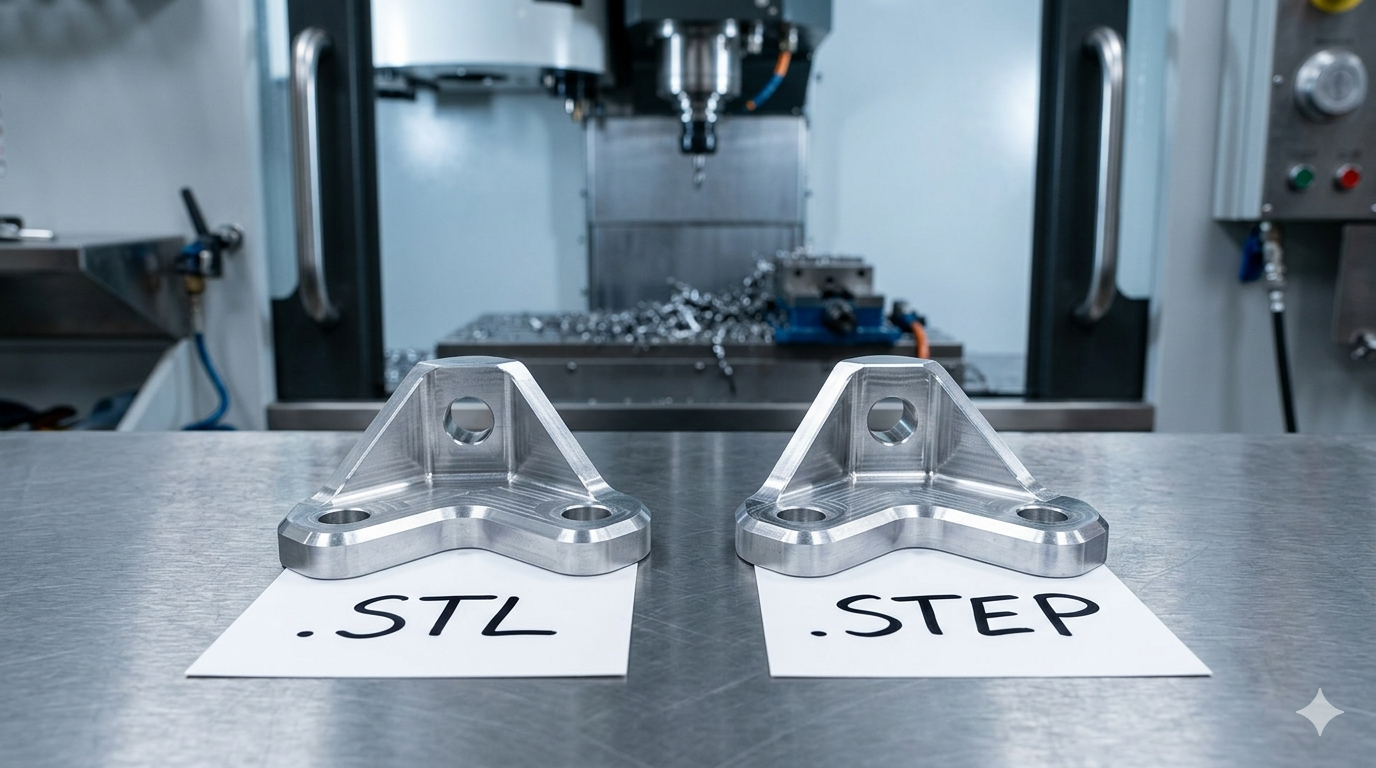
- You’re getting a quote from a CNC machine shop
- The mold maker needs to inspect wall thickness and draft angles
- Your manufacturer might need to tweak tolerances or fix minor issues
- You’re collaborating with another engineer who uses different software
Don’t send a STEP when: your 3D printer only accepts STL or OBJ — which is most consumer printers.
The One-Line Answer
If your part is going on a 3D printer, send STL.
If your part is going to a manufacturer, send STEP.
If you’re not sure, send both.
Photo by Nikkor / Pexels
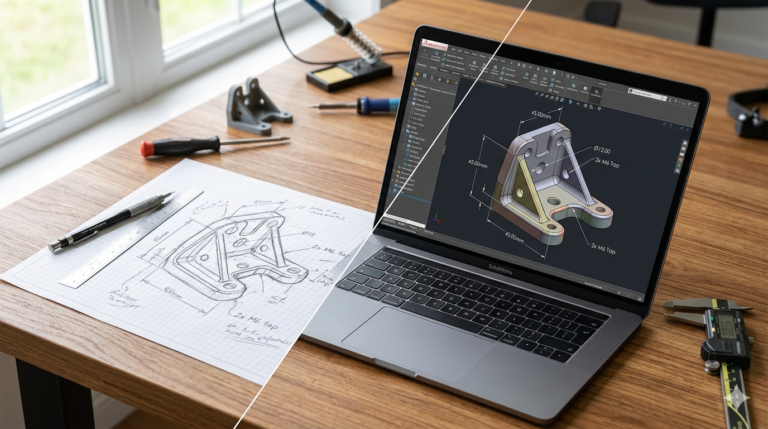
And here’s the real advice nobody tells you: always keep the native SolidWorks file (.SLDPRT or .SLDASM). That’s your master copy. STEP is the universal translator. STL is the printer-ready output. But the SolidWorks file is where the editable magic lives — the full feature tree, every sketch, every dimension you can grab and change.
Lose that, and your next design revision starts from zero.
See how we apply these principles in real projects — explore our custom 3D printed nozzle diffuser manifold and custom PCB enclosure 3D printed project box portfolio examples. Ready to start your own project? Check out our STL file design service and prototype design service for professional SolidWorks engineering delivered in 24 hours.
Quick Reference
| Format | 3D Printing | CNC / Molding | Editable? |
|---|---|---|---|
| STL | Yes | No | No |
| STEP | Convert first | Yes | Partially |
| SolidWorks (.SLDPRT) | Export to STL | Yes | Fully |
Need a CAD model in every format?
MiniCAD delivers SolidWorks + STEP + STL on every order. No guessing, no extra charge.
4,470+ reviews · 4.9★ rating · 24-hour delivery available
{
“@context”: “https://schema.org”,
“@type”: “Article”,
“headline”: “STL vs STEP — Which File Should You Send to Your Manufacturer?”,
“description”: “The real difference between STL and STEP files — and when to use each one for 3D printing, CNC machining, and injection molding.”,
“author”: {
“@type”: “Person”,
“name”: “Loay”,
“url”: “https://minicad.io”
},
“publisher”: {
“@type”: “Organization”,
“name”: “MiniCAD Engineering Studio”,
“url”: “https://minicad.io”
},
“datePublished”: “2026-03-19”,
“image”: “https://images.pexels.com/photos/8865186/pexels-photo-8865186.jpeg?auto=compress&cs=tinysrgb&w=1200”,
“mainEntityOfPage”: “https://minicad.io/blog/stl-vs-step-file-3d-printing-manufacturing”
}
{
“@context”: “https://schema.org”,
“@type”: “FAQPage”,
“mainEntity”: [
{
“@type”: “Question”,
“name”: “What is the difference between STL and STEP files?”,
“acceptedAnswer”: {
“@type”: “Answer”,
“text”: “STL converts a 3D model into a mesh of triangles — ideal for 3D printing but not editable. STEP retains the actual mathematical geometry as smooth surfaces — editable by any CAD program and preferred by manufacturers for CNC and injection molding.”
}
},
{
“@type”: “Question”,
“name”: “Which file format should I send to a 3D printing service?”,
“acceptedAnswer”: {
“@type”: “Answer”,
“text”: “STL is the standard file format accepted by virtually all 3D printing services and slicer software. Always also keep a STEP or native SolidWorks file as your editable master copy.”
}
},
{
“@type”: “Question”,
“name”: “Can I edit an STL file?”,
“acceptedAnswer”: {
“@type”: “Answer”,
“text”: “Not meaningfully. STL files lose all parametric data. A simple edit like changing a hole diameter often requires rebuilding the model from scratch. Always keep the original STEP or SolidWorks file for future modifications.”
}
}
]
}